Edit a Company Level Action Plan Template
Things to Consider
Required User Permissions:
'Admin' level permissions on the Company level Admin tool
Additional Information:
The default general information and default sections and items can be changed while an action plan is being created from a template by users with the appropriate permissions.
You can set templates to Private by default. However, when creating an action plan from a template, users can select to make the action plan private or not.
Prerequisites
Create Action Plan Types
Optional: Create a Company Level Action Plan Template
Steps
Under Tool Settings, click Action Plans.
Navigate to the Templates area.
Click Edit next to the action plan template you want to edit.
Edit general information as needed. Note: Some fields are only configurable at the project level.
Edit sections and items as needed. Note: Some fields are only configurable at the project level.
Click + Add Item to add items to your action plan sections.
Click + Add Section to add additional sections to your action plan.
Continue editing sections and items as necessary.
Copy Sections and Items on an Action Plan
Under Sections and Items, locate the section or item you want to copy.
Hover your cursor over the end of the row.
If you are copying a section, hover over the section title bar and click Duplicate
 OR if you are copying an item, hover over the item and click Duplicate .
Fill out the information as needed in the newly created section or item.
Bulk Edit Items
To bulk edit sections and items, do the following:
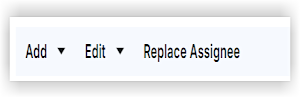
To edit all sections and items, click the first checkbox at the top of the Sections and Items table. This triggers the bulk edit menu options.
To only edit one section and all of its items, click the checkbox next to the section number. This triggers the bulk edit menu options.
Click the Edit drop-down arrow.
You can bulk edit the Acceptance Criteria.
Enter your desired details.
Click Save.
When you are finished editing sections and items, click Save Draft to save it as a draft, or click Publish if you're ready for the action plan to be approved to be performed.

Rearrange Sections or Items
Click the toggle next to Reorder Sections.
Hover your cursor over the beginning of the row with the section or item you want to move.
Click and hold the vertical grip (⋮⋮) icon.
Drag and drop the row to move it up or down in the table's order.
Delete a Section or Item
Hover your cursor over the end of the row.
Click the
 icon.
icon.Click Delete.
When you are finished editing sections and items, click Save Draft to save it as a draft, or click Publish if you're ready for the action plan to be approved to be performed.
Next Steps
See Also
Loading related articles...