Respond to a 'Welcome to Procore' Email
Background
If your employer or a company you do business with invites you to join their Procore organization as a user, you will receive an automated email message from the @procoretech.com domain with the 'Welcome to Procore' subject line. To respond to the email and join the Procore organization, follow the Steps below to log in to the Procore web application for the first time.
Things to Consider
Required User Permission:
To receive an invite to become a Procore user, a user with 'Admin' level permission to the Company Directory must do the following:
Additional Information:
After sending an invite, the system sends the person an automated "Welcome to Procore" email from the @procoretech.com domain.*
If you are a new Procore user, you will be prompted to create a password.
For security reasons, the Get Started link in the "Welcome to Procore" email and any follow-up invitations expire three days after the email is sent, or after a user clicks the link once.
If the recipient does NOT respond to an invite, the system sends follow-up invitations at one, three, seven, and fourteen days.
You can re-invite people who don't respond to your invites.
Examples
Welcome Email for a Company's Procore Account
Welcome Email for a Company's Procore Project
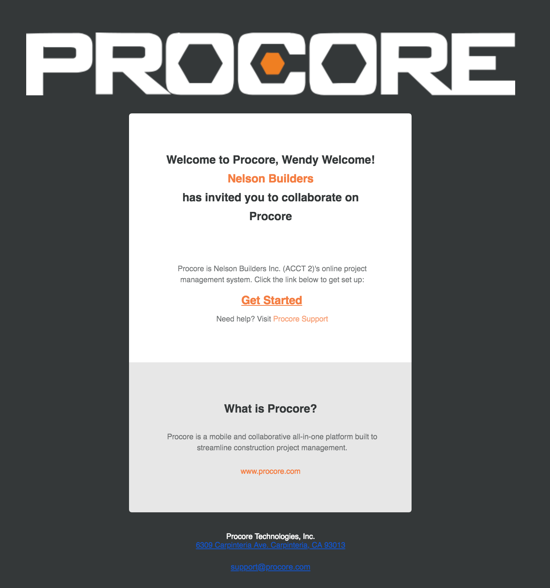
Welcome Email for a Company's Procore Account
The example below shows you what an invite to a company's Procore account looks like.
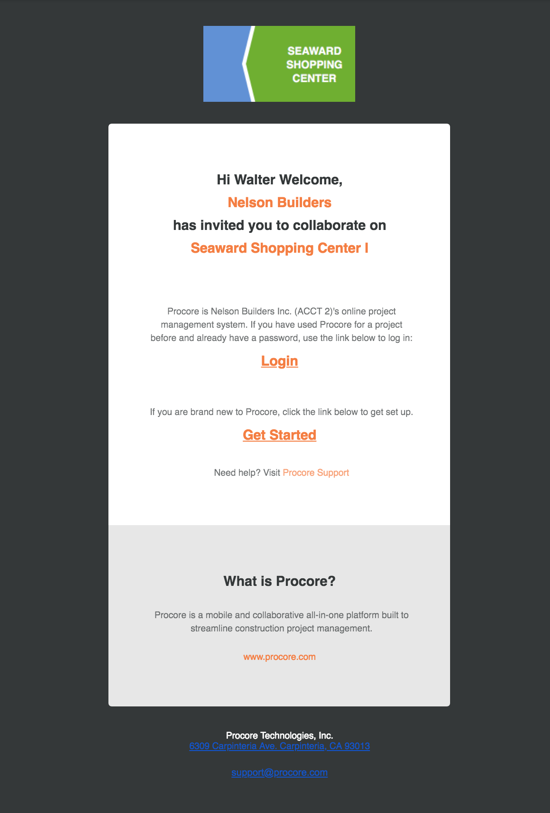
Welcome Email for a Company's Procore Project
The example below shows you what an invite looks like for a Procore project looks like.
Schritte
Öffnen Sie die Willkommens-E-Mail.
Wenn Sie ganz neu bei Procore sind, klicken Sie auf Erste Schritte.
Hinweis: Wenn Sie Procore in der Vergangenheit für ein Projekt verwendet haben und bereits ein Passwort haben, klicken Sie auf Anmelden. Fahren Sie dann fort mit So melden Sie sich bei Procore Web an (app.procore.com).Geben Sie ein Passwort in das Feld Passwort ein, das die folgenden Anforderungen erfüllt:
Procore's Password Requirements:
Acht (8) oder mehr Zeichen
Mindestens ein (1) Großbuchstabe
Mindestens ein (1) Kleinbuchstabe
Mindestens eine (1) Nummer
Mindestens ein (1) Sonderzeichen (!@#$%^&*)
Passwörter müssen übereinstimmen
Sie können Ihre letzten vier (4) Passwörter nicht wiederverwenden
Geben Sie dasselbe Passwort erneut in das Bestätigungsfeld ein.
Wenn Sie den Bau-Newsletter von Procore abonnieren und Informationen über Produktaktualisierungen erhalten möchten, markieren Sie das Kontrollkästchen.
Klicken Sie auf Passwort festlegen.
See Also
Loading related articles...