Clock Your Time (iOS)
Background
Use the My Time tool to track your workday, record meal breaks, and clock in or out.
Things to Consider
This feature is only available if you have the Timesheets tool enabled.
Procore automatically syncs your My Time entries across the Daily Log, Company Timecard, Project and Company Timesheets tools.
You can also add a My Time Entry without clocking in and out.
Enable Live Activities on your device to display a My Time widget on your lock screen while you are clocked in.
Steps
Clock Your Time in the iOS App
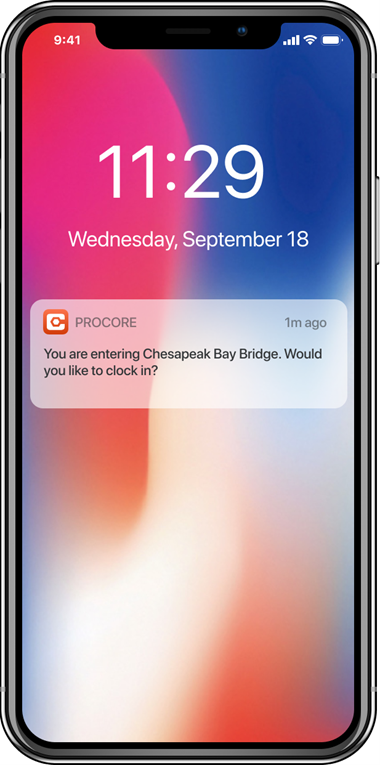
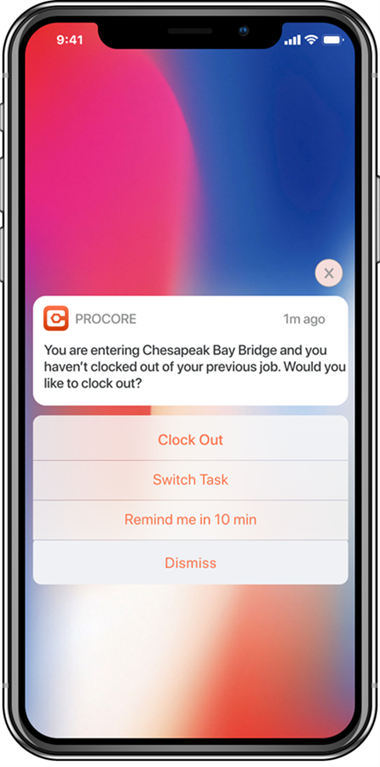
Clock Your Time with Geofence Clock In & Out Reminders
Clock Your Time in the iOS App
Open the Procore App on an iOS mobile device and select a project.
Navigate to the My Time tool.
Tap Clock In to start your work shift.
Enter your timecard information.
Show/Hide Fields
Project. The project you are currently working on.
Sub Job. The sub job associated with the time entry.
Codes
Task Code: A time-entry selector based on your company’s configured Work Breakdown Structure and project settings.
Notes
The options shown to users are filtered by admin controls (for example, cost type limits, budgeted-item restrictions, and active/inactive budget code status).
Applied filters are saved for future entries.
Cost Code: The budget code associated with the time entry.
Location. The location where the work is being performed.
Type:
Beta Auto-Apply Time Type Rules. Move the toggle
 to the ON to automatically apply Overtime Rules. See Configure Overtime Rules for Timesheets.
Select the type of time being entered.
Billable: Select whether the entry is billable or not.
Description: Enter a more detailed description of the time entry.
Tap Apply to start the clock.
Tap the down arrow to return to the My Time list page.
Tap your time at the bottom of the page to open your time module.
Tap Edit if you need to change any time entry information.
Tap Switch Task if you need to stop your time for the current task and start tracking your time for a new task.
If available, Start and Stop Lunch Break.
Tap Clock Out to end your work shift.
Clock Your Time with Geofence Clock In & Out Reminders
Device Setting Requirements
To receive clock-in and clock-out push notifications, your device must meet the following requirements:
Procore push notifications are enabled on your iOS device. For instructions on how to enable push notifications from Procore, see Manage Project Settings (iOS).
Location Services are enabled for your iOS device. To see your location settings, do the following:
Navigate to the Settings for your device.
Tap Privacy.
Tap Location Services.
Tap the toggle for Location Services to the ON position.
Tap Procore.
Tap Always to allow location access.