Delete Photos (Android)
Things to Consider
Required User Permissions:
'Admin' level permissions on the project's Photos tool.
Additional Information:
Anything you delete will automatically be moved to the 'Recycle Bin' which can be found when you log in to the Procore web application (the Recycle Bin is not currently available from an Android device). If you delete a photo by accident, you can navigate to the Recycle Bin in the web app.
See Retrieve a Photo from the Recycle Bin.Dieses Asset oder Element kann im Offline-Modus angezeigt oder bearbeitet werden, wenn es zuvor auf Ihrem Mobilgerät angezeigt und zwischengespeichert wurde. Aufgaben, die im Offline-Modus ausgeführt werden, werden mit Procore synchronisiert, sobald eine Netzwerkverbindung wiederhergestellt ist.
Steps
Navigate to the Photos tool using the Procore app on an Android device.
Tap the photo you want to delete.
Tap the vertical ellipsis
 icon.
icon.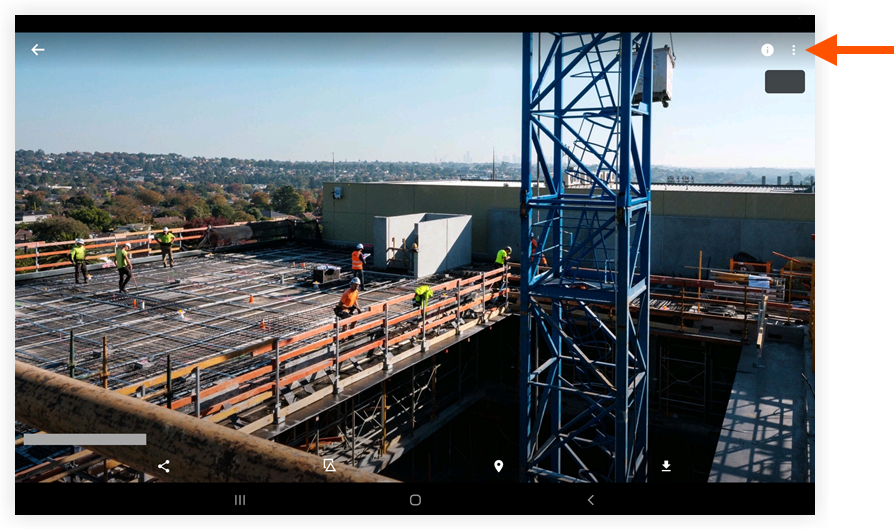
Tap Delete.
Tap Delete to confirm that you want to delete the photo.
Note: The photo is automatically deleted and moved to the Recycle Bin.
See Also
Loading related articles...