Review Submittal PDF Attachments
Background
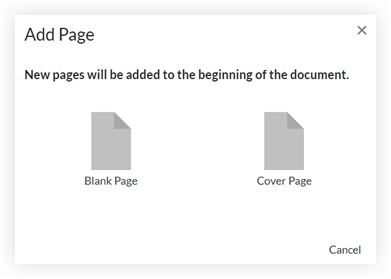
While reviewing a submittal’s PDF attachments in Procore, users who have the current Ball In Court (BIC) responsibility on the submittal can apply markups and add personal stamps directly in Procore's web application. Users with 'Admin' level permissions on the project's Submittals tool who have the current Ball In Court responsibility can also add a blank page or a cover page to the front of the PDF.
Dinge, die Sie beachten sollten
Steps
Add Markup to a Submittal PDF Attachment
Optional: Add or Remove a Blank Page or Cover Page to a Submittal PDF Attachment
Add Markup to a Submittal PDF Attachment
Navigate to the project's Submittals tool.
Click the Items, Packages, Spec Sections, or Ball In Court tab. See Switch Between Submittals Views.
Click View next to the submittal with the PDF attachment you want to add markup to.
In the 'Submittal Workflow' table, click Open next to the PDF attachment you want to add markup to.
Tip
Current attachments are indicated by a 'Current' label in the 'Version' column. See When is a submittal attachment labeled as 'Current' in the 'Submittal Workflow' table?
Use the markup tools to add markups or one of your submittal stamps to the file.
Note: If you change an applicable markup tool's attributes (stroke width, color, or opacity) before using that markup tool, the system will apply the same attributes by default each time you use that markup tool. Editing the attributes for an existing markup does not affect the markup tool's default attributes.
1The attachment viewer must be in 'Scroll Mode'. 2Scrolling left and right are only available when the page view in the attachment viewer is narrower than the actual page width.
6. When you are finished adding your markups and stamps, click Close to close the attachment viewer and to return to the submittal.

The submittal PDF attachment you added markups to will have a markup pencil  icon next to it and 'Current' will display in the 'Version' column to indicate which version of the attachment is the most up-to-date.

Optional: Add or Remove a Blank Page or Cover Page
This task can only be performed by Submittal Managers and users with 'Admin' level permissions on the project's Submittals tool with the current Ball In Court responsibility.
Navigate to the project's Submittals tool.
Click the Items, Packages, Spec Sections, or Ball In Court tab. See Switch Between Submittals Views.
Click View next to the submittal with the PDF attachment you want to add a blank page or a Procore-generated cover page to.
In the 'Submittal Workflow' table, click Open next to the PDF attachment you want to add a blank page or a Procore-generated cover page to.
Tip
Current attachments are indicated by a 'Current' label in the 'Version' column. See When is a submittal attachment labeled as 'Current' in the 'Submittal Workflow' table?
Adding a cover sheet or blank sheet to an attachment does not give it the label of "Current" in the Version column of the 'Submittal Workflow' table.

 icon next to the page number.