Convert a Meeting from Agenda to Minutes (iOS)
Background
When you first create a meeting, the system automatically places the meeting into agenda mode. While the meeting is in agenda mode you can set up the meeting details. After the meeting has been converted to 'Minutes Mode', you can take attendance for the meeting.
You can revert the meeting mode from minutes to agenda. You can also distribute minutes and agenda.
Things to Consider
Required User Permissions:
You need one of the following:
'Admin' level permissions on the project's Meetings tool.
'Read Only' level permissions or higher on the project's Meetings tool with the 'Update Meeting' granular permission enabled on your permissions template.
Steps
Navigate to the project's Meetings tool using an iOS mobile device.
Tap the meeting you want to convert to minutes.
Tap Convert to Minutes.
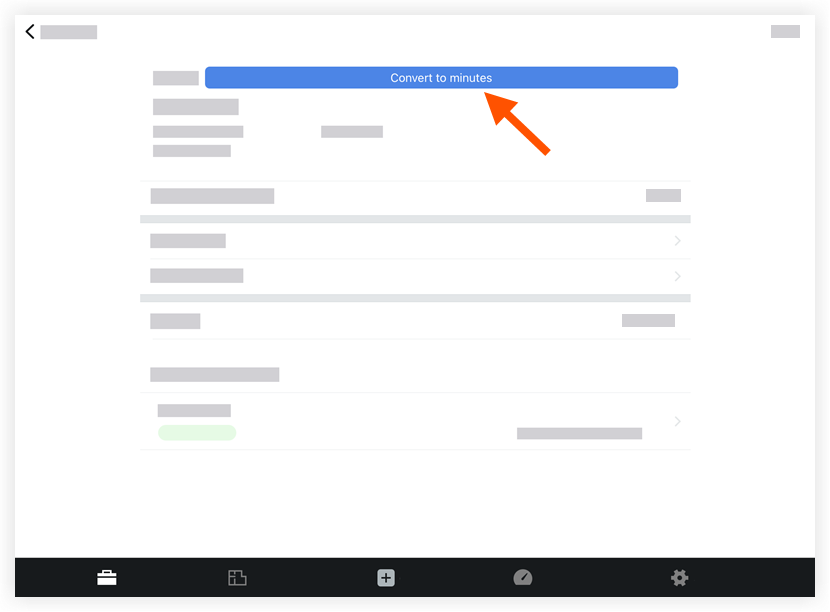
Tap Convert in the pop-up window to confirm you want to convert to minutes mode.
This action converts the meeting into "Minutes mode", which means you have completed all meeting planning and are ready take attendance. See Take Attendance (iOS).To roll back the meeting mode from Minutes to Agenda, do the following:
Tap the
 icon (located next to Edit) in the meeting screen.
Choose the Revert to Agenda option.
This option allows you to move the meeting back from Minutes mode to Agenda mode.
To distribute minutes and agendas, do the following:
To distribute meeting minutes, tap the
icon (located next to Edit) in the follow-up meeting screen and choose the Distribute Minutes option. To distribute agenda, tap the
icon (located next to Edit) in the meeting screen and choose the Distribute Agenda option.
See Also
Loading related articles...