Add or Manage Project Tasks in Procore Estimating
Things to Consider
Required User Permissions:
'Estimator' or higher level user role. See What are the different 'user roles' in Procore Estimating?
Additional Information:
Deleted tasks cannot be recovered.
Steps
The following actions are available:
Add a Task
Mark a Task as Complete
Edit a Task
Delete a Task
To add a task
Navigate to the Projects tab of Procore Estimating.
In the Tasks section, click + Add New.
Complete the following for the new task:
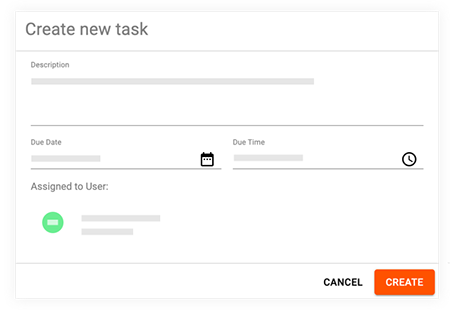
Description: Enter a description for the task.
Due Date: Click the calendar icon to select a due date for the task.
Due Time: Click the clock icon to select a time for the task to be due.
Assigned to User: Click the field to select a user to assign the task to. Click Select to confirm the assignee.
Click Create to confirm the creation of the task.
To mark a task as complete
Navigate to the Projects tab of Procore Estimating.
In the Tasks section, locate the task you want to mark as complete.
Mark the checkbox on the task.
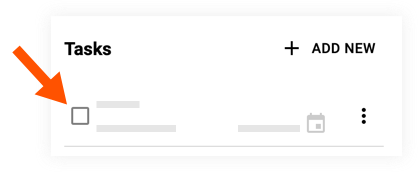
The task shows as completed and is removed from the total number of tasks.

To edit a task
Navigate to the Projects tab of Procore Estimating.
In the Tasks section, locate the task you want to edit.
Click the vertical ellipsis
 icon on the task.
Click Edit.
Update the task as necessary.
Click Save.
To delete a task
Navigate to the Projects tab of Procore Estimating.
In the Tasks section, locate the task you want to delete.
Click the vertical ellipsis
icon on the task.Click Delete.
Note: Deleting a task is permanent.On the confirmation window, click Delete.
See Also
Loading related articles...