Remove Item Pin from the Map
Background
Items can be added to the tool's map. Items with photos automatically appear on the map based on the location data in the photo. If the photos do not appear on the map, it is likely, that the photos do not contain location data. To confirm that your photos collect location data when you are capturing photos, see Android Location Data and iOS Location Data.
You remove item pins from the map by following these steps.
Things to Consider
Required User Permissions for Project Map
Required User Permissions for General Maps
Items with Photos
All photos appear on the map based on the location data in the photo. If the photos do not appear on the map, it is likely, that the photos do not contain location data. To confirm that your photos collect location data when you are capturing photos, see Android Location Data and iOS Location Data. For more troubleshooting, see How do items in Procore appear on the map?
Equipment locations are updated dynamically based on telematics and geolocation and cannot be manually moved or removed from the map.
Steps
Navigate to the tool's map.
If using the Project Map, select a tool and the list
 icon.
icon.Click List and select Mapped to see a list of mapped items.
Click the item name, map pin, or thumbnail to open the details.
Click the remove pin
 icon to remove the pin from the map.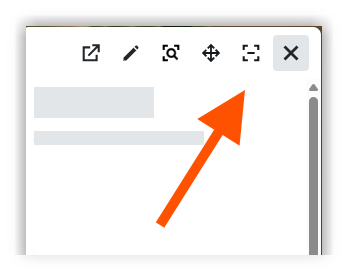

See Also
Loading related articles...