The erpsupport@procore.com email address will be retired on April 8, 2026. We recommend using our enhanced Webform, Phone, or Chat for faster support on new requests.
Navigate to the Timesheets tool on your Android mobile device.
Navigate to the date you want to edit a timesheet for.
Tap the timesheet you want to edit.
Tap Edit.
Tap the Date field to modify the timesheet's date. Then tap Done once the date is selected.
Tap the timecard entry you want to edit.
Enter time for Labor.
Tap Add Line next to the crew member or employee name to enter information into the timecard.
Tap any of the fields to enter labor information. Show/Hide Fields
Notes
Project Timesheets Administrators configure how time is collected for each project. Additionally, each some fields can be configured as required, optional, or hidden.
Classification: The resource classification.
Codes
Task Code: A combination of Cost Codes and Sub Jobs.
Cost Code: The cost code associated with the time entry.
Sub Job: Select from the drop-down menu the sub job associated with the time entry.
Location: The location where the work was performed.
Time
Total Time: The total time worked for the day.
Start Time: The time the resource started working.
Stop Time: The time the resource stopped working.
Lunch Time: The amount of time taken for a lunch break. Notes:
The amount of time selected will be subtracted from the Total Time.
This field will only be available if Start Time and Stop Time is enabled.
Time Type: Select the type of pay being entered.
Regular Time
Double Time
Exempt
Holiday
Overtime
PTO
Salary
Vacation
Billable: Tap the toggle to indicate whether or not the entry is billable.
Auto-Apply Overtime Rules (Beta). Tap the toggle to automatically enforce overtime rules.
Description: Additional comments that will show in the timecard entry.
Tap Add Line to add a new line for the timecard.
Tap Save.
Enter time for Equipment.
Tap Add Line next to the equipment to enter information into the timecard.
Tap any of the fields to enter equipment information. Show/Hide Fields
Notes
Project Timesheets Administrators configure how time is collected for each project. Additionally, each some fields can be configured as required, optional, or hidden.
Task Code: A combination of Cost Codes and Sub Jobs.
Operator: The user operating the equipment.
Operating Hours: How many hours the equipment was operating.
Tap Add Line to add a new line for the timecard.
Tap Save.
Review the summary for the timecard's hours, and the daily and weekly hours across all projects.
Tap Submit.
Grid View (Tablet Only)
Navigate to the Timesheets tool on your Android mobile device.
Navigate to the date you want to edit a timesheet for.
Tap the timesheet you want to edit.
Tap Edit.
Follow steps to enter or update timecard information:
Enter Time by Tapping Cells
Tap any task code field for a user or equipment and enter the timecard information. Note: You can tap multiple cells to bulk enter time.
Show/Hide Fields
Notes
Project Timesheets Administrators configure how time is collected for each project. Additionally, each some fields can be configured as required, optional, or hidden.
Task Code: A combination of Cost Codes and Sub Jobs.
Location: The location where the work was performed.
Time
Total Time: The total time worked for the day.
Start Time: The time the resource started working.
Stop Time: The time the resource stopped working. Note: You will only see the Start and Stop fields if you have configured your settings to show these fields. See Configure Advanced Settings: Project Level Timesheets.
Lunch Time: The amount of time taken for a lunch break. Notes:
The amount of time selected will be subtracted from the Total Time.
This field will only be available if Start Time and Stop Time is enabled.
Time Type: The type of pay being entered.
Regular Time
Double Time
Exempt
Holiday
Overtime
PTO
Salary
Vacation
Billable: The ON toggle indicates that entry is billable.
Auto-Apply Overtime Rules (Beta). The ON toggle automatically enforces overtime rules.
Description: Additional comments that will show in the timecard entry.
Show/Hide Fields
Notes
Project Timesheets Administrators configure how time is collected for each project. Additionally, each some fields can be configured as required, optional, or hidden.
Task Code: A combination of Cost Codes and Sub Jobs.
Operator: The user operating the equipment.
Operating Hours: How many hours the equipment was operating.
Tap Apply.
Bulk Enter Time Using Checkboxes
Tap the checkboxes for the resources you want to enter time for.
Enter the information to be applied to all selected timecards. Note: If you wish not to apply the information to one of the selected cells, tap the highlighted cell to deselect.
Show/Hide Fields
Notes
Project Timesheets Administrators configure how time is collected for each project. Additionally, each some fields can be configured as required, optional, or hidden.
Task Code: A combination of Cost Codes and Sub Jobs.
Location: The location where the work was performed.
Time
Total Time: The total time worked for the day.
Start Time: The time the resource started working.
Stop Time: The time the resource stopped working. Note: You will only see the Start and Stop fields if you have configured your settings to show these fields. See Configure Advanced Settings: Project Level Timesheets.
Lunch Time: The amount of time taken for a lunch break. Notes:
The amount of time selected will be subtracted from the Total Time.
This field will only be available if Start Time and Stop Time is enabled.
Time Type: The type of pay being entered.
Regular Time
Double Time
Exempt
Holiday
Overtime
PTO
Salary
Vacation
Billable: The ON toggle indicates that entry is billable.
Auto-Apply Overtime Rules (Beta). The ON toggle automatically enforces overtime rules.
Description: Additional comments that will show in the timecard entry.
Show/Hide Fields
Notes
Project Timesheets Administrators configure how time is collected for each project. Additionally, each some fields can be configured as required, optional, or hidden.
Task Code: A combination of Cost Codes and Sub Jobs.
Operator: The user operating the equipment.
Operating Hours: How many hours the equipment was operating.
Tap Apply.
Bulk Enter Time for a Single Task Code
Tap the horizontal ellipsis for the task code.
Tap Bulk Time Entry (Labor) or Bulk Time Entry (Equipment).
Enter the information to be applied to all selected timecards. Note: If you wish not to apply the information to one of the selected cells, tap the highlighted cell to deselect.
Show/Hide Fields
Notes
Project Timesheets Administrators configure how time is collected for each project. Additionally, each some fields can be configured as required, optional, or hidden.
Task Code: A combination of Cost Codes and Sub Jobs.
Location: The location where the work was performed.
Time
Total Time: The total time worked for the day.
Start Time: The time the resource started working.
Stop Time: The time the resource stopped working. Note: You will only see the Start and Stop fields if you have configured your settings to show these fields. See Configure Advanced Settings: Project Level Timesheets.
Lunch Time: The amount of time taken for a lunch break. Notes:
The amount of time selected will be subtracted from the Total Time.
This field will only be available if Start Time and Stop Time is enabled.
Time Type: The type of pay being entered.
Regular Time
Double Time
Exempt
Holiday
Overtime
PTO
Salary
Vacation
Billable: The ON toggle indicates that entry is billable.
Auto-Apply Overtime Rules (Beta). The ON toggle automatically enforces overtime rules.
Description: Additional comments that will show in the timecard entry.
Show/Hide Fields
Notes
Project Timesheets Administrators configure how time is collected for each project. Additionally, each some fields can be configured as required, optional, or hidden.
Task Code: A combination of Cost Codes and Sub Jobs.
Operator: The user operating the equipment.
Operating Hours: How many hours the equipment was operating.
Tap Apply.
Optional: To add another task code, tap Add Code. Select the task code, then tap Done.
Optional: To remove a resource, tap the horizontal ellipsis next to the resource, then tap Delete Resource.
Review the summary for the timecards' hours, and the daily and weekly hours across all projects.
 and Line
  views.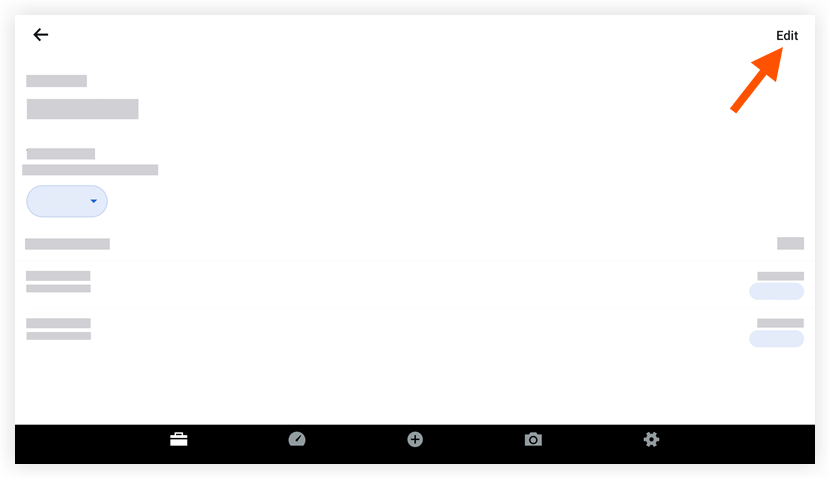
 indicates that entry is billable.
 for the task code.