View the Certification Dashboard
Steps
Navigate to the Company level Admin tool.
Under 'Company Settings' in the sidebar, click Certification Analytics.
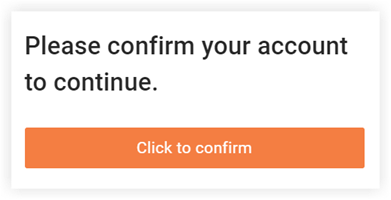
Note: If this is your first time accessing Certification Analytics, you will need to follow the prompts on the screen to confirm your account.
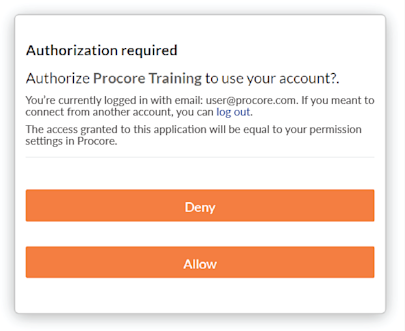
Click Allow to authorize Procore Training to access your account.
Note: This one-time authorization allows you to access the Certification Analytics from the Company level Admin tool. If you click Deny, the process stops, which prevents any analytics from loading.
Optional: Sign in through your organization's SSO.
Once authorized, you can filter and view analytics by Course or by Student.
View Analytics by Course
Click By Course.
Notes:If you have Custom Certification Courses built out through Procore's Training Management Product, you will be able to see both Custom AND Public Courses from this view.
If you do NOT have Custom Certification Courses, the Company Courses section will not populate any data and you will only track Procore's Public Courses.
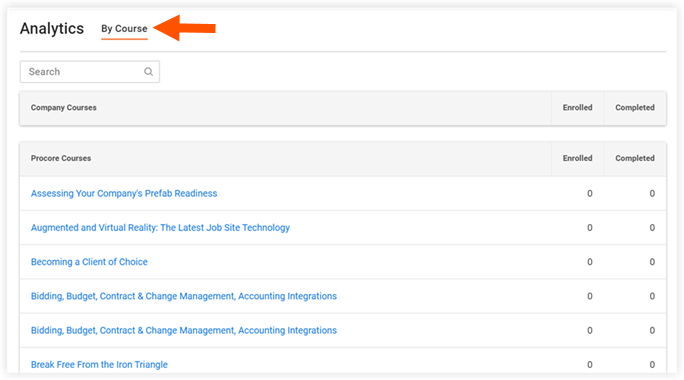
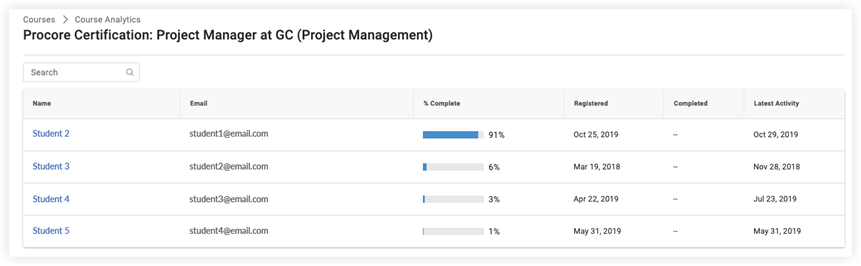
Click on the course you want to track.
From there, you will see any users in your Company Level Directory that have registered for the course.
View Analytics by Student
Click By Student.
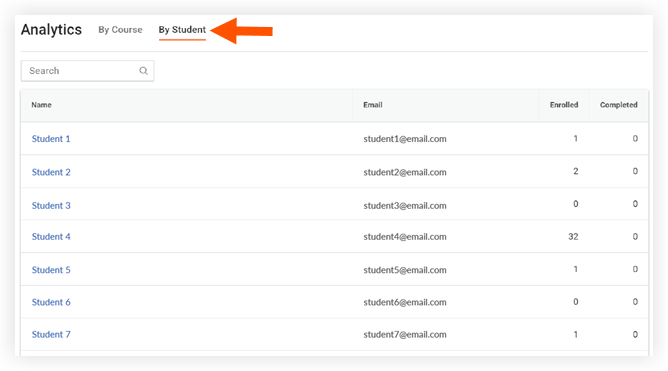
Click on the student you want to track.
From there, you will see any courses that this user has registered for.

See Also
Loading related articles...