Connect to Databricks
Overview
This tutorial will assist you with securely accessing Procore datasets using the Databricks environment.
Things to Consider
Required User Permissions
'USE_PROVIDER' permission for your Databricks account.
Considerations
If you have multiple Procore accounts, you can streamline data access. Once you log in to one of your accounts and use your Databricks identifier, you will be able to retrieve data from all your accessible Procore accounts through that single delta share identifier connection. This eliminates the need to log in from other accounts or add identifiers separately.
Steps
Note
This method of connection is typically used by data professionals.
Log in to your Databricks environment.
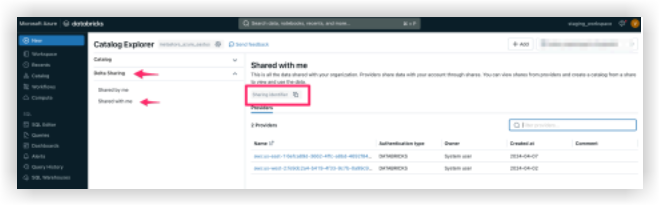
Navigate to the Catalog section.
Select Delta Sharing from the top menu.
Select Shared with me.
Copy the Sharing Identifier provided for you.
In Procore, click the Account & Profile icon in the top-right area of the navigation bar.
Click My Profile Settings.
Click the Analytics tab.
Enter your Databricks sharing identifier.
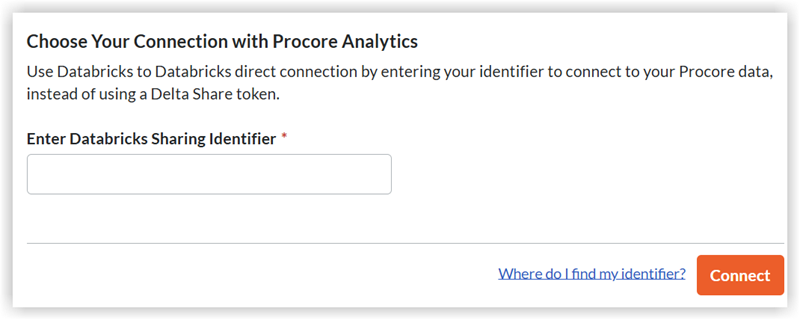
Click Connect.
Note: Once the sharing identifier is added to Procore's system, the Procore Databricks connection will appear within the Shared with me tab under Providers in your Databricks environment. It may take up to 24 hours to see the data.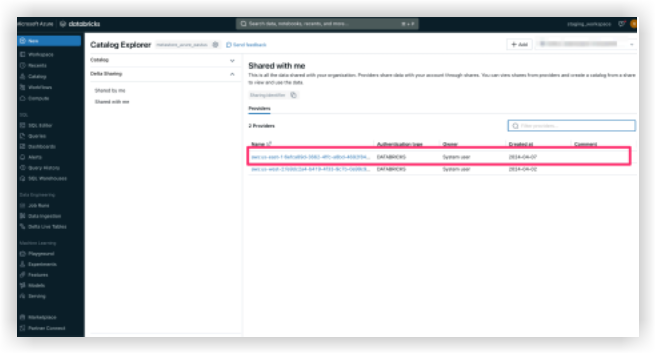
When your Procore Databricks connection becomes visible in the Shared with me tab, select the Procore Identifier and click Create Catalog.
Enter your preferred name for the shared catalog and click Create.
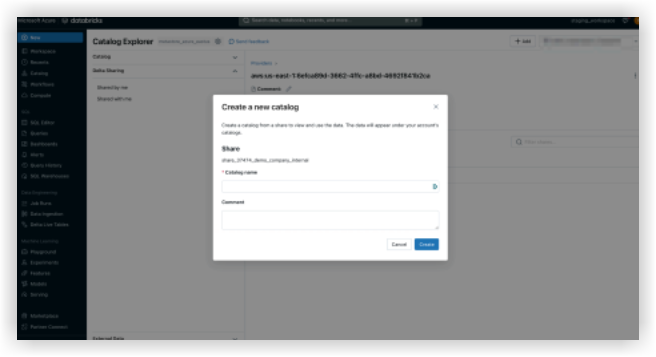
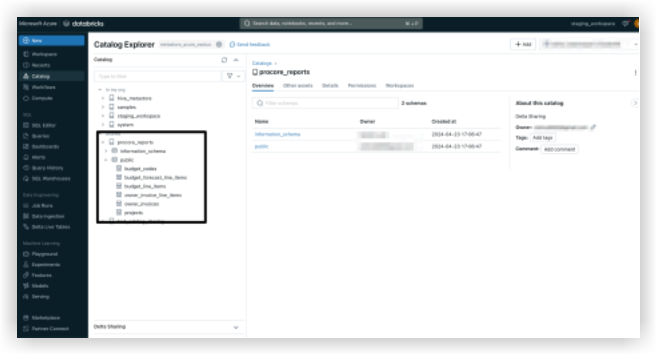
Your shared catalog and tables will now show under the provided name in the Catalog Explorer.
Note: Please reach out to Procore Support if you have any questions or need assistance.