Manage a Group in the Conversations Tool
Background
When you create a group in the Conversations tool, you are creating a group conversation that allows you to send a messageto designated team members at the same time. See Create a Group in the Conversations Tool. These group messages can be viewed and replied by team members in the Groups section of the Conversations tool, organized by project.
Things to Consider
Required User Permissions:
Procore user with the 'Create and Manage Group' privilege. See Configure Access and Settings for the Conversations Tool. This permission can be set to 'Administrators', 'Internal Employees', or 'Everyone':
If 'Administrators' is selected, you need 'Admin' level permissions to the Project or Company level Directory tool.
If 'Internal Employees' is selected, you must be marked as an internal employee. See How do I add someone as an employee of my company?
If 'Everyone' is selected, you must be a member of the Company Directory.
Additional Information:
If the Conversations tool is configured to allow only Admins to create and manage groups, we recommend keeping at least one Admin in a group so that it can be managed. Admin users are shown with
(Admin)after their name in the user selection list.Each group in the Conversations tool can support up to 2,000 members.
Steps
Navigate to the Conversations tool (click the conversations
 icon in the top menu of Procore).
In the 'Groups' section, click the group that you want to manage.
Click Manage Group.
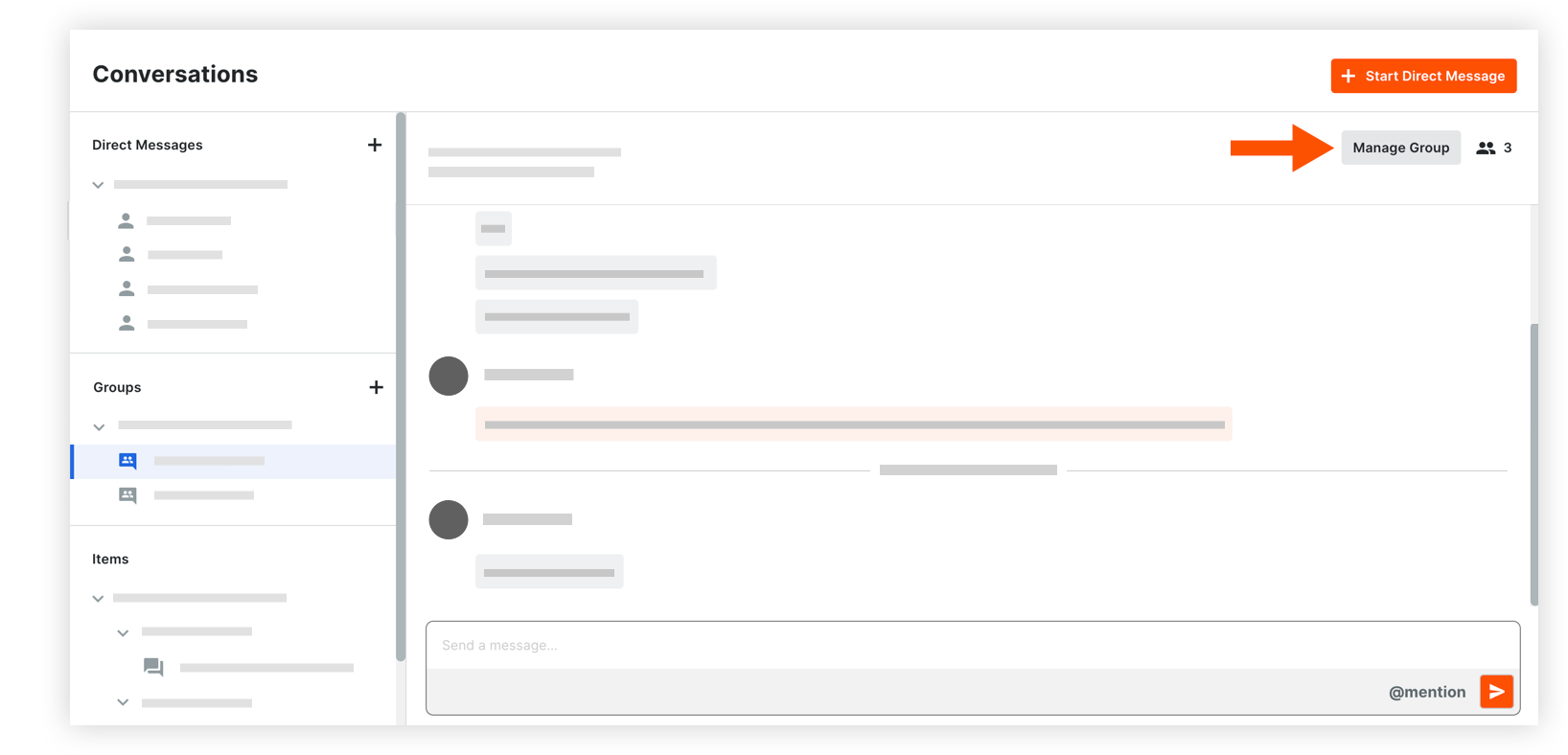
The following information can be modified:
Group Name: Edit the name for the group if necessary.
Team Members: Manage the list of team members as necessary, choosing between manual selection and using the project's Directory:* Selected users:* To add users: Click into the menu to see the list of project users. Select any users you want to add to the group.
Note: If your project has distribution groups, you can select one to add those members to the conversation group. See Add a Distribution Group to the Project Directory.* To remove users: Click the x icon on the user's name.* Everyone in this project's Directory: This includes automatic updates to the team members when any user is added or removed from the project Directory in the future.
Note: Company Admins who are not yet in the project's Directory are prompted to add themselves before proceeding with this option.
Click Save Changes.
See Also
Loading related articles...