Close a Coordination Issue
Close a coordination issue once it is resolved and verified. Doing so clears it from the issues list in the Procore BIM Plugin, keeping your Autodesk® workspace organized. Don't worry about losing data—the Coordination Issues tool in the Procore web application permanently stores every issue for your records.
You can close issues directly from:
The Procore Web Application (Coordination Issues tool)
Autodesk® Navisworks® (via the Procore BIM Plugin)
Autodesk® Revit® (via the Procore BIM Plugin)
Things to Consider
Additional Information:
'Standard' users cannot close coordination issues, but they can mark them as complete. Learn how to Mark a Coordination Issue as Complete.
Closing an issue hides it in Autodesk®, but you can still view it in the project's Coordination Issues tool in the Procore web application.
Prerequisites
To close an issue from Autodesk® with the Procore BIM Plugin, you must first Associate a Navisworks® Model with a Procore Project.
Steps
Close a coordination issue from your preferred platform:
From the project's Coordination Issues tool Show/Hide Details
Navigate to the project's Coordination Issues tool.
Find the issue you want to close by searching or filtering by assignee, status, or location.

Click the issue to view its details in the side panel.
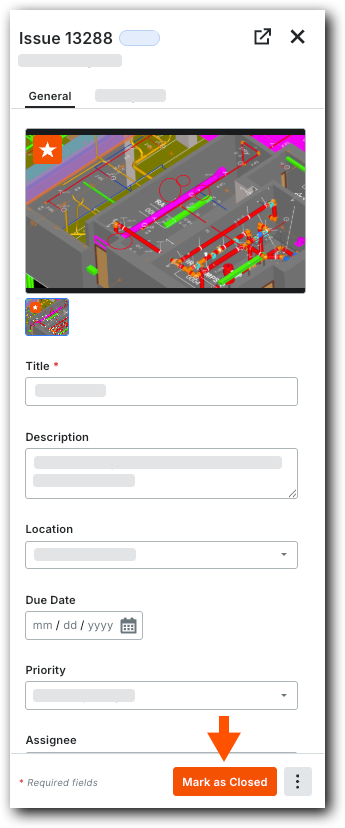
Click Mark as Closed in the side panel.


From Autodesk® Revit® with the Procore BIM Plugin Show/Hide Details
Start Autodesk® Revit® and navigate to a 3D view in the Revit® project browser.
Click the Procore tab.
Click Coordination Issues.
In the Coordination Issues panel, select the Procore project.
On the coordination issue, click the information
 icon.
icon.Click Actions and select Mark as Closed.
See Also
Loading related articles...