Mark a Daily Log as Complete (iOS)
Things to Consider
Required User Permissions:
'Admin' level permissions on the project's Daily Log tool.
Prerequisites:
Steps
Navigate to your project's Daily Log tool on an iOS mobile device.
Navigate to the date of the daily log you want to mark as 'Complete.'
Once all relevant logs for the selected day have been completed, tap Complete Day.
Note: When a daily log is marked as complete, entries cannot be added or modified.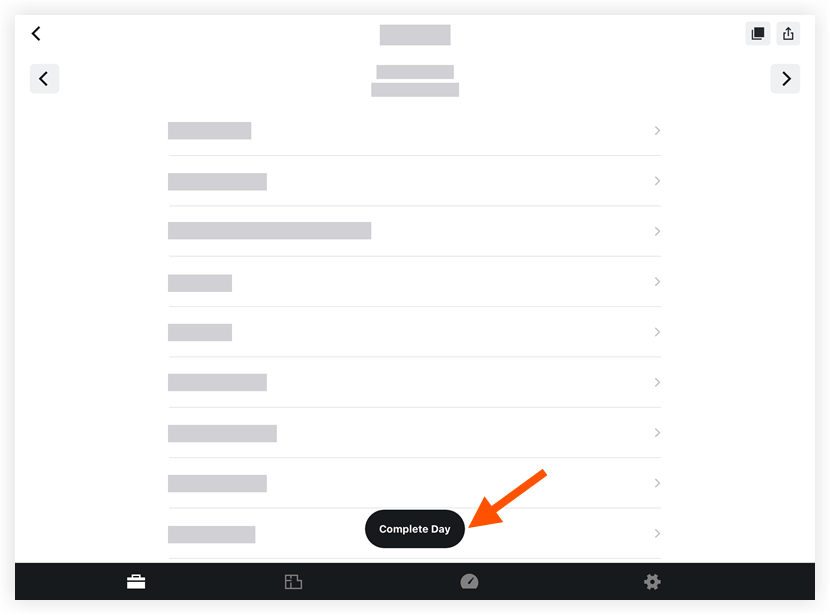
If a Distribution List has been set up for the Daily Log, you can choose to complete the day without sending a notification, or complete the day and distribute the completed log to those on the Distribution List.
Do one of the following:Tap Complete to complete the day.
Tap Complete and Distribute to complete the day and distribute a copy of the log to users on the Distribution List.
When a daily log is marked as 'Complete', the following banner will appear:
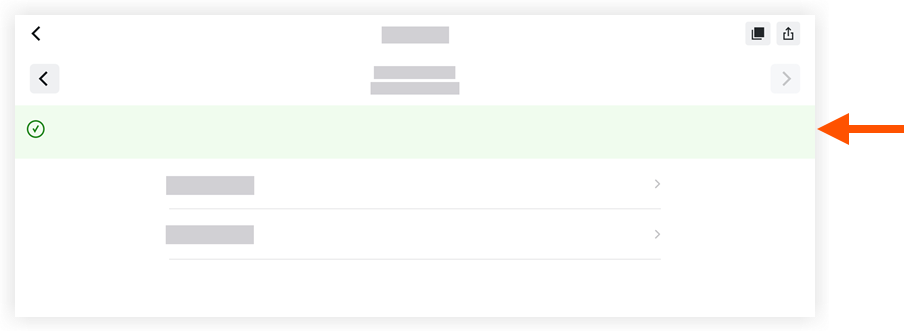
Note: A daily log can be reopened again at anytime by tapping Reopen Day.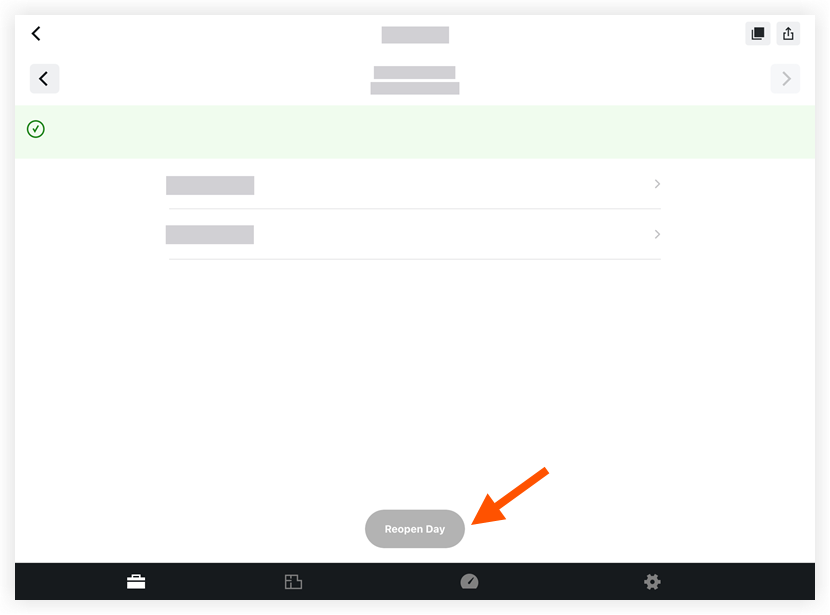
See Also
Loading related articles...