Reorder Drawings Within a Discipline
Things to Consider
Required User Permissions:
'Admin' on the project's Drawings tool.
Additional Information:
When you reorder drawings in the Drawings tool, the new order will be displayed for everyone who can access the Drawings tool.
Steps
Navigate to the project's Drawings tool.
Click the vertical ellipsis
 icon for a discipline and select Reorder Drawings.
Click and drag over the reorder
 icon for a drawing to move it to a new position.
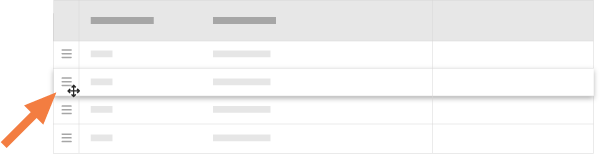
Continue moving drawings as necessary.
Click Confirm.
See Also
Loading related articles...