View Project Level Inspections

Things to Consider

Beta

A modernized list view is now available for the Inspections tool! This feature offers enhanced filtering, customizable table columns, and saved views. To try the new interface, toggle Beta Items List to the ON position at the top of the Inspections list.

  • Required User Permissions

  • Additional Information:

    • Inspections use the general language 'Conforming/Deficient' to indicate any positive or negative responses in summaries.
Prerequisites

Steps

  1. Navigate to the Project level Inspections tool.

  2. Click View next to the inspection you want to view.

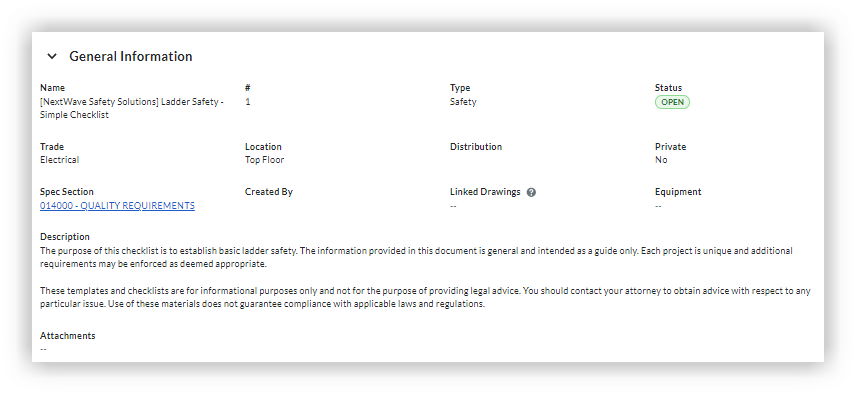
  3. View summary information about the inspection report as well as detailed information about each inspected item.

  4. The title of your inspection will inherit its name from the Company level inspection template followed by a number (e.g. 1, 2, 3), starting with '1' for the first inspection created with the template.

  5. A summary of all inspection items are highlighted with circular progress graphs. Use the Deficient and N/A graphs to highlight the percent of open items that may require additional follow-up and/or resolution in order to bring them into conformance.
    Inspections Created By

See Also

Loading related articles...