Configure Settings: Invoicing
Using Owner or Specialty Contractor Terminology?
Procore can be configured to use terminology specific to General Contractors, Owners, or Specialty Contractors. Learn how to apply the dictionary options.
An invoice administrator should configure the Invoicing tool settings before your team members create any invoices on a Procore project.
Navigate to the project's Invoicing tool.
Click Configure Settings
icon.
Under Settings, click one of the following to configure or update your settings:
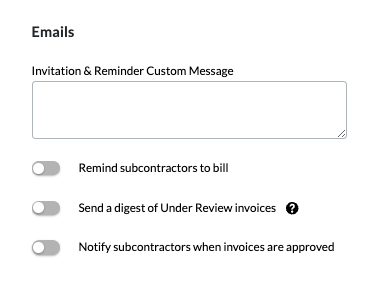
Move the toggle to the right to turn an option ON. Move it to the left to turn it OFF. The default setting for these options is OFF:
Remind subcontractors to bill. Turn ON to send automatic email reminders to invoice contacts. You can set the email frequency—Every day, Every 2 days, or Every 3 days from the Subcontractor Reminder Frequency drop-down list. Procore stops sending reminders after the due date. The system sends the first reminder to bill after the subcontractor is invited, based on your configured frequency.
Send a digest of Under Review invoices. Turn ON and select Weekly from the Under Review Digest Frequency drop-down list to send a weekly digest summary every Monday. Invoices for the current billing period are included in this digest message when they are in the Draft, Under Review, or Revise and Resubmit status. Digest messages are sent to members of the 'Invoice Distribution' drop-down list, located in the Default Distributions section of the Configure Settings page in the Commitments tool. See Configure Settings: Commitments.
Notify subcontractors when Invoices are approved. Turn ON to automatically send an email notification to invoice contact(s) when an invoice's status is changed to Approved or Approved as Noted by an invoice administrator. See Review a Subcontractor Invoice as an Invoice Administrator.
Automatic Moving of Stored Materials. Use the Stored Materials setting to track and bill for delivered items that aren't yet installed. Enabling this adds dedicated columns to your Schedule of Values (SOV), allowing you to separate physical inventory from labor-based progress. On subsequent invoices, the system automatically moves stored amounts to the 'Work Completed from Previous Application' column. Note that enabling this setting only affects future invoices.
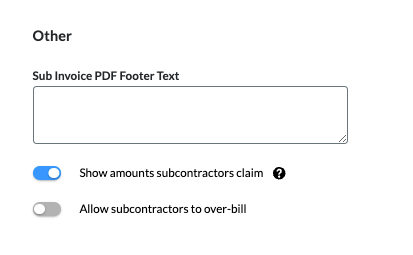
Optional: Sub Invoice PDF Footer Text. Enter the footer text for the exported invoice PDF. See Export a Subcontractor Invoice. This field is useful for adding information about local regulations and compliance statements.
The 'Sub Invoice PDF Footer' text only appears when a user with 'Admin' level permissions on the project's Commitments tool generates the PDF. It does NOT appear on any PDF generated by a user with 'Read Only' or 'Standard' level permissions on the Commitments tool.
Optional: Show Amounts Subcontractors Claim. If you enable this setting, general contractors can differentiate between what a subcontractor claims and what the general contractor approves.
In Australia and New Zealand, enabling the 'Show Amounts Subcontractors Claim' setting will also let general contractors create a payment schedule PDF in response to the invoice. See Review a Subcontractor Invoice as an Administrator and Create a Payment Schedule.
Total Claimed Amount. This reflects the 'Proposed Amount' column on the invoice's Detail tab. It excludes retainage.
Total Approved Amount. This reflects the 'Work Completed this Period' plus 'Materials Presently Stored' on the invoice's 'Detail' tab. This value also excludes retainage.
Reasons for Difference. When there is a difference between the claimed and approved amounts, include those reasons here. See Review a Subcontractor Invoice as an Invoice Administrator.
Overbilling. Allow Subcontractors to Over-Bill. Click the checkbox to choose the appropriate option:
How does this setting work? See How do I prevent or allow overbilling on a subcontractor invoice?
Want to prevent overbilling on all of your company's Procore projects? A Procore Administrator can turn the 'Prevent Overbilling on All Projects' setting ON in the Company Admin tool. This prevents users from saving an invoice if any of the invoice's line items exceed 100% of the budgeted amount in the commitment on all of your company's Procore projects. See Set the Defaults for Your Projects. When ON, users can't change the 'Allow Subcontractors to Over-Bill' setting on a project.
To prevent over-billing. This prevents users from saving an invoice if any of the invoice's line items exceed 100% of the budgeted amount in the commitment on this Procore project.
OR
To allow over-billing. This is the default setting. This setting prevents users from saving an invoice if any of the invoice's line items exceed 100% of the budgeted amount in the commitment on all of your company's Procore projects.
Sign using Procore
Sign using Procore. When an invoice is ready for signature, You are prompted to type their name or draw a signature directly within Procore.
Sign using Docusign. When an invoice reaches the "Approved" or "Signature Required" status, Procore automatically sends the document to DocuSign. The signers receive a standard DocuSign email.
Click Save.
Loading related articles...