Scan a QR Code in the Locations Tool (iOS)
Things to Consider
Required User Permissions:
'Read Only' or higher permissions on one or more of the following tools: Inspections, Observations, Punch List, or RFIs.
Steps
Navigate to the project's Locations tool on an iOS device.
Tap the QR Code
 icon.
icon.Point the camera at a Procore-generated location QR code to scan it (see example QR code below).
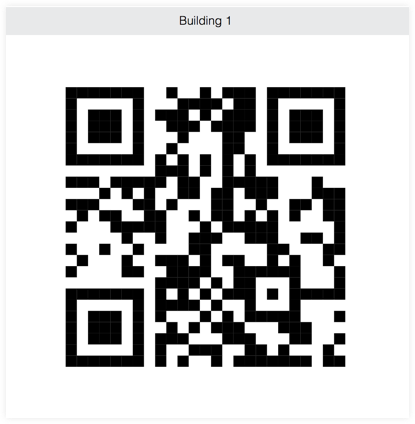
The Procore app will scan the code and redirect you to the results automatically.View the items associated with the location.
Note: You can only view the items that you have permissions to view in Procore.The following actions are available:
Tap the tool to see the respective items.
Tap an item to view its details.
Users with the appropriate permissions can create or add items for the following tools:
Photos
Punch List
Incidents
Inspections
Observations
RFIs
See Also
Loading related articles...