Delete a Meeting Item
Things to Consider
Required User Permissions:
You need one of the following:
'Admin' level permissions on the project's Meetings tool.
'Read Only' level permissions or higher on the project's Meetings tool with the 'Manage Meeting Items' granular permission enabled on your permissions template.
Additional Information:
When you delete a meeting item, the item is permanently removed from the meeting and cannot be retrieved.
Steps
Navigate to the project's Meeting tool.
Click the arrow next to a meeting to expand the series.
Click the meeting's title.
Under the Agenda section, find the category item you want to delete.
TIP: Use the Expand All button to quickly expand all items.
Click the Delete Agenda Item
 icon next to category item.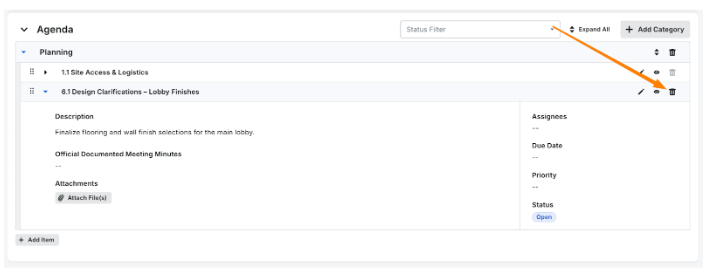
Click Delete to confirm.
Note: If the Delete Agenda Item icon is grayed out, you must first change the Status of the meeting item to 'Closed'.Click Delete to confirm.


See Also
Loading related articles...