Switch Between Views in the Projects List
Background
The Project's page in the Portfolio tool contains a row of icons that lets you view your project list in List, Thumbnail, Overview, or Map view.
Things to Consider
Required User Permissions:
'Read Only' level permissions or higher on the company's Portfolio tool.
Note: Your company determines which views and features are visible and available to you in this tool. See Set the Dashboard View Permissions.
Additional Information:
If your user profile has not been added to a project's Directory, you will NOT be able to view that project in the Portfolio's 'Projects' page.
Steps
Navigate to your company's Portfolio tool.
The Portfolio page appears. After you create a project, this page lists all the projects in your company's Procore account.Click Projects.
This reveals a list of projects.Switch between views by clicking an icon in the top-right corner.
The table below describes each icon in the Projects view Portfolio tool.
Icon…
When ORANGE, means this view is active…

List View

Thumbnail View

Overview View

Map View
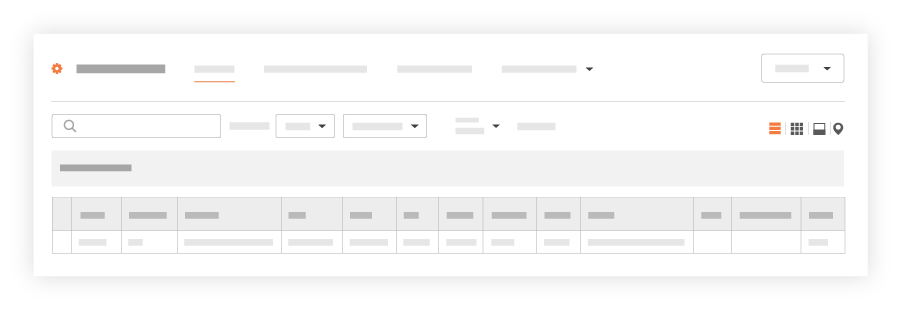
List View. Displays each project as a line item.
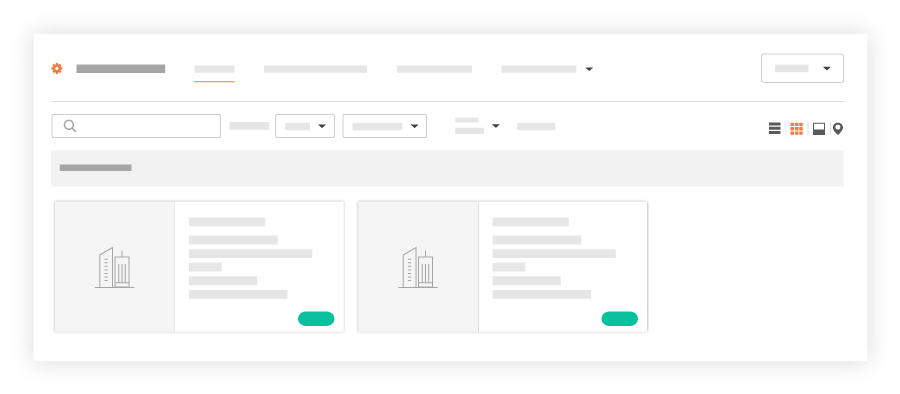
Thumbnails View. Displays each project as a card.
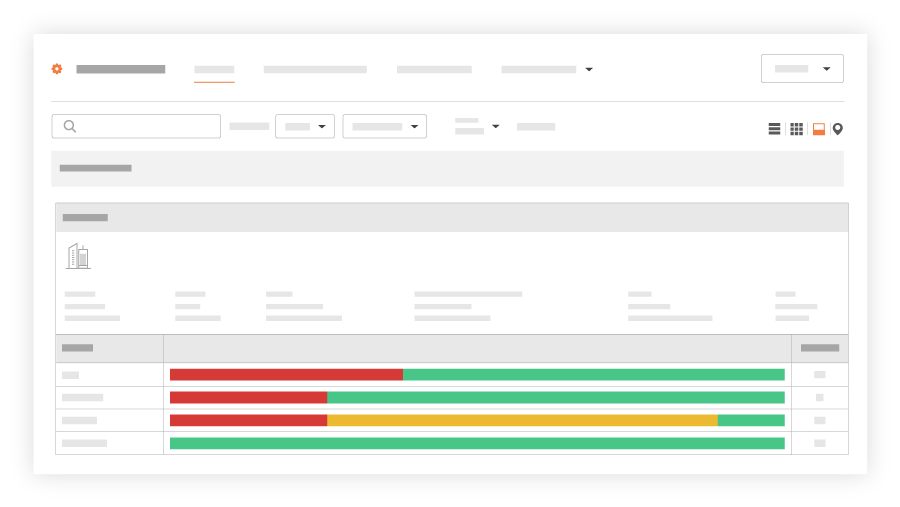
Overview View. Displays each project in your account with project data (if available).
Note: If the Schedule tool is disabled (see Add and Remove Tools on a Project), no value will appear in the 'Schedule Updated' field.
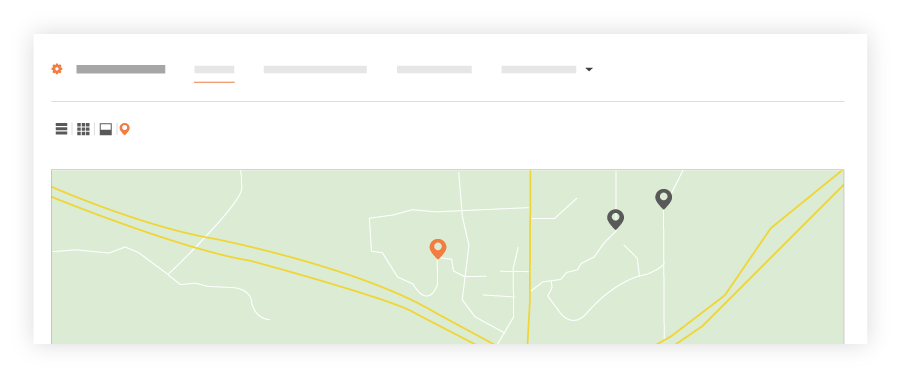
Map View. Displays your company's projects on a map. You can click the icons on the map to view project information. See Show Portfolio Projects in Map View.
See Also
Loading related articles...