Update Custom Procore Analytics Reports Using Legacy Custom Fields

 Important

This tutorial is written for users who are familiar with updating custom reports in Microsoft's Power BI Desktop. For the most up-to-date-information available, visit Microsoft's Power BI website.
Steps

  1. Open Power BI Desktop.

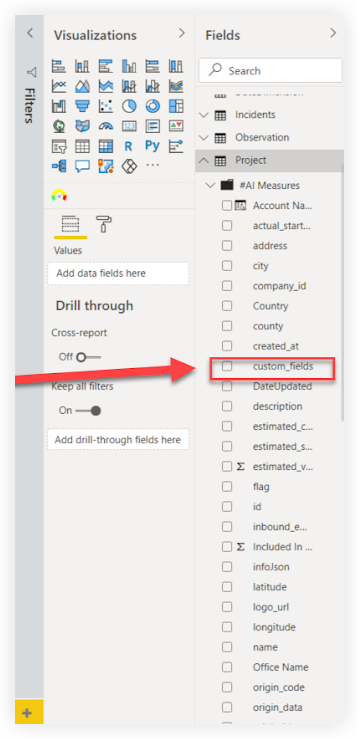
  2. Open a report that has been customized to use legacy custom fields from one of the following Procore fieldsets:

    • Project

    • Prime Contracts

    • Purchase Orders

    • Subcontracts

       Note

      The screenshots throughout this tutorial use Procore's 'Project' fieldset as an example.

      Procore Analytics Project Custom Fields

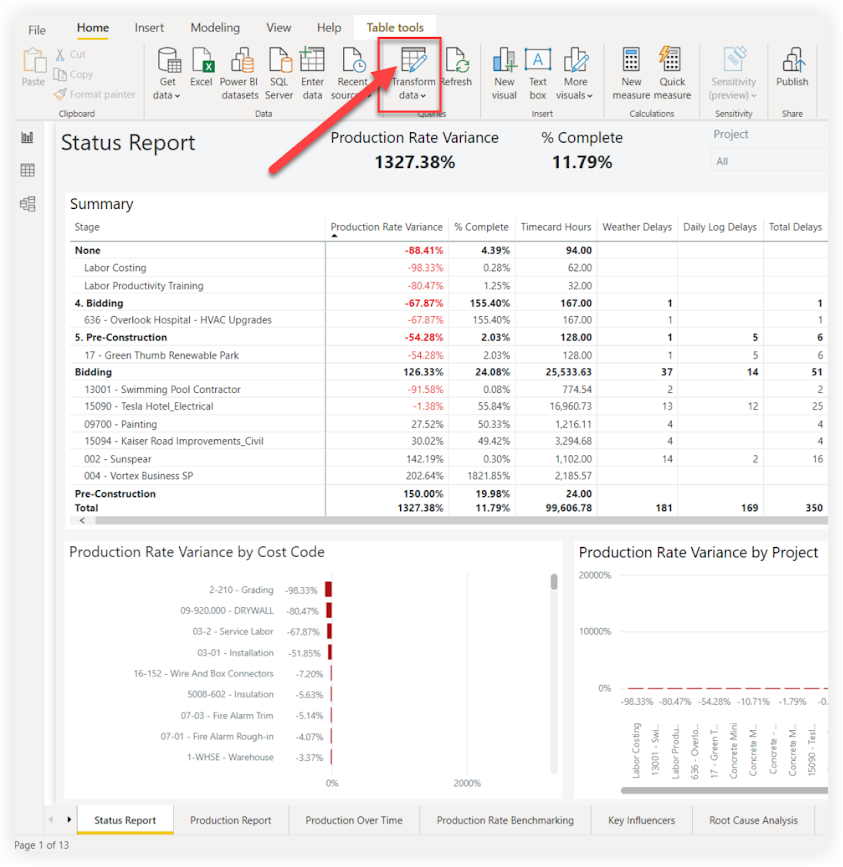
  3. Click Transform Data to open the Power Query Editor.

    Procore Analytics Transform Data

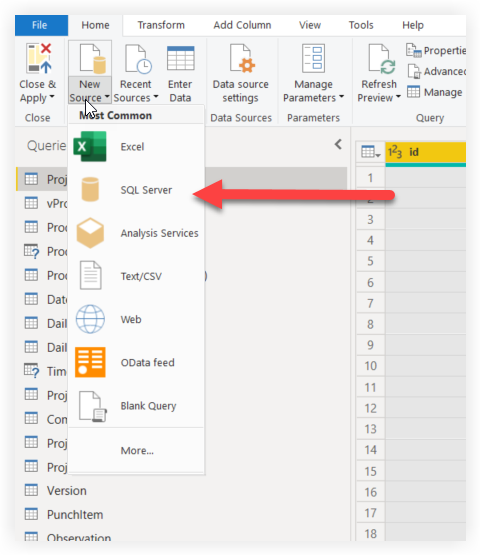
  4. Click New Source and select SQL Server from the drop-down menu.

    Procore Analytics New Source Sql Server

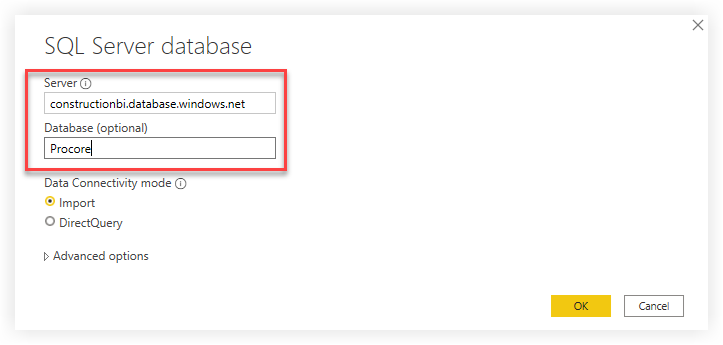
  5. In the SQL Server database window:

    Procore Analytics Sql Server Database Window

    • Enter constructionbi.database.windows.net in the Server field.

    • Enter Procore in the Database field.

    • Click the Import button under the Data Connectivity mode options.

    • Click OK.

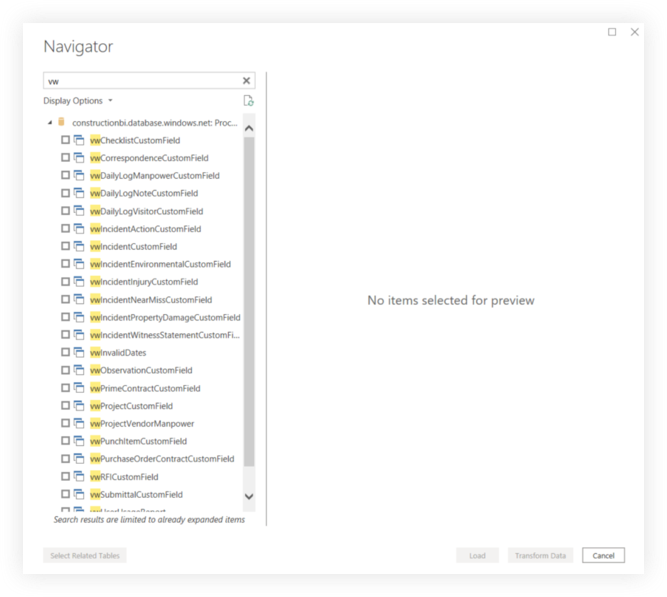
  6. In the Navigator window:

    Procore Analytics Navigator

    • Enter the SQL view name in the search bar to locate the custom field table.
      Below are the SQL view names for the fieldsets applicable to this tutorial:

      • Project: vwProjectCustomField

      • Prime Contracts: vwPrimeContractCustomField

      • Purchase Orders: vwPurchaseOrderContractCustomField

      • Subcontracts: vwWorkOrderContractCustomField

    • Mark the checkbox next to the search result.

    • Click OK.

  7. Select the fieldset's ID column, the custom_field_key_label column, and the custom_field_value column.
    Below are the column names for the fieldset identifiers applicable to this tutorial:

    • Project: ID

    • Prime Contracts: PrimeContract_ID

    • Purchase Orders: PurchaseOrderContract_ID

    • Subcontracts: WorkOrderContract_ID

    • To select all columns:

      • Left click one column name.

      • Hold the CTRL key and left click the other column names

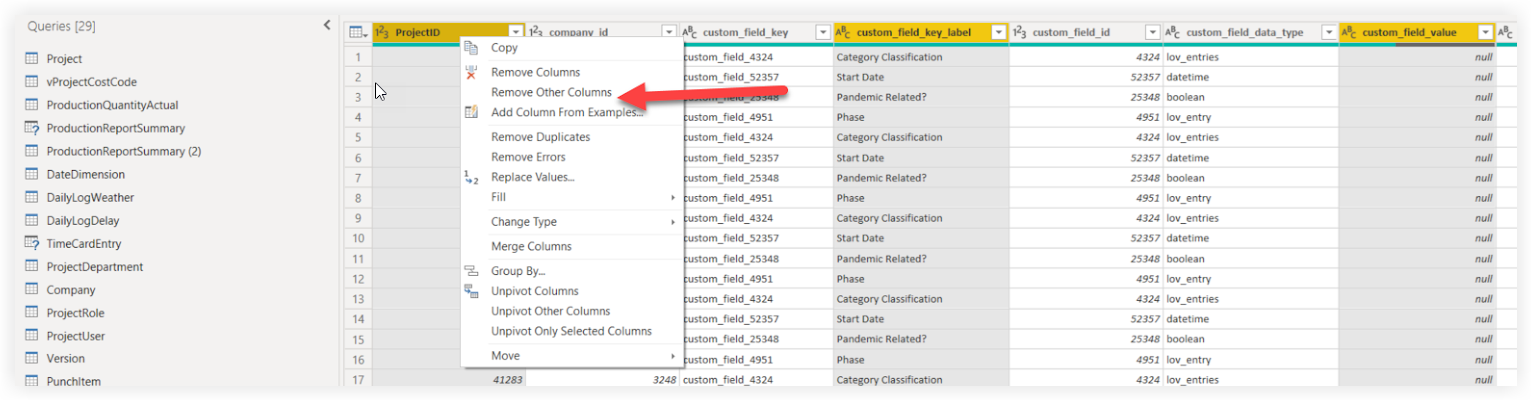
  8. Right click on one of the three selected columns and select Remove Other Columns from the drop-down menu.

    Procore Analytics Project Custom Fields Remove Other Columns

  9. Select the custom_field_key_label and custom_field_value columns.
    To select the two columns:

    • Left click one column name.

    • Hold the CTRL key and left click the other column name.

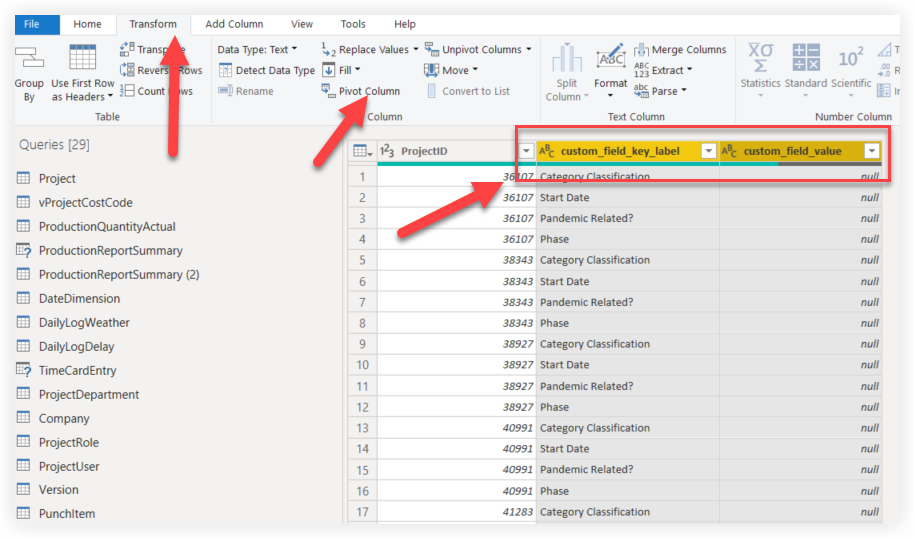
  10. Click the Transform tab.

  11. Click Pivot Column.

    Procore Analytics Project Custom Fields Pivot Column

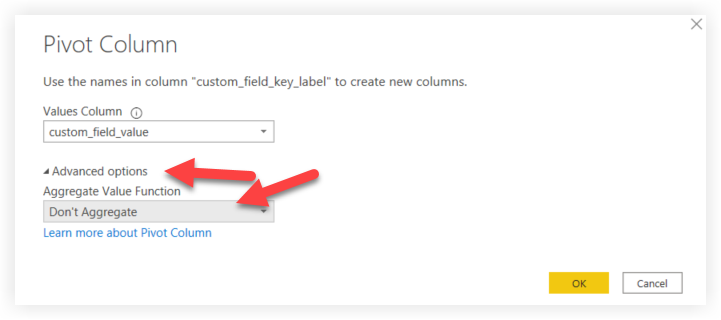
  12. In the Pivot Column window:

    Procore Analytics Pivot Column Window

    • Click Advanced options.

    • Select Don't Aggregate from the Aggregate Value Function drop-down menu.

    • Click OK.

  13. Click the Home tab.

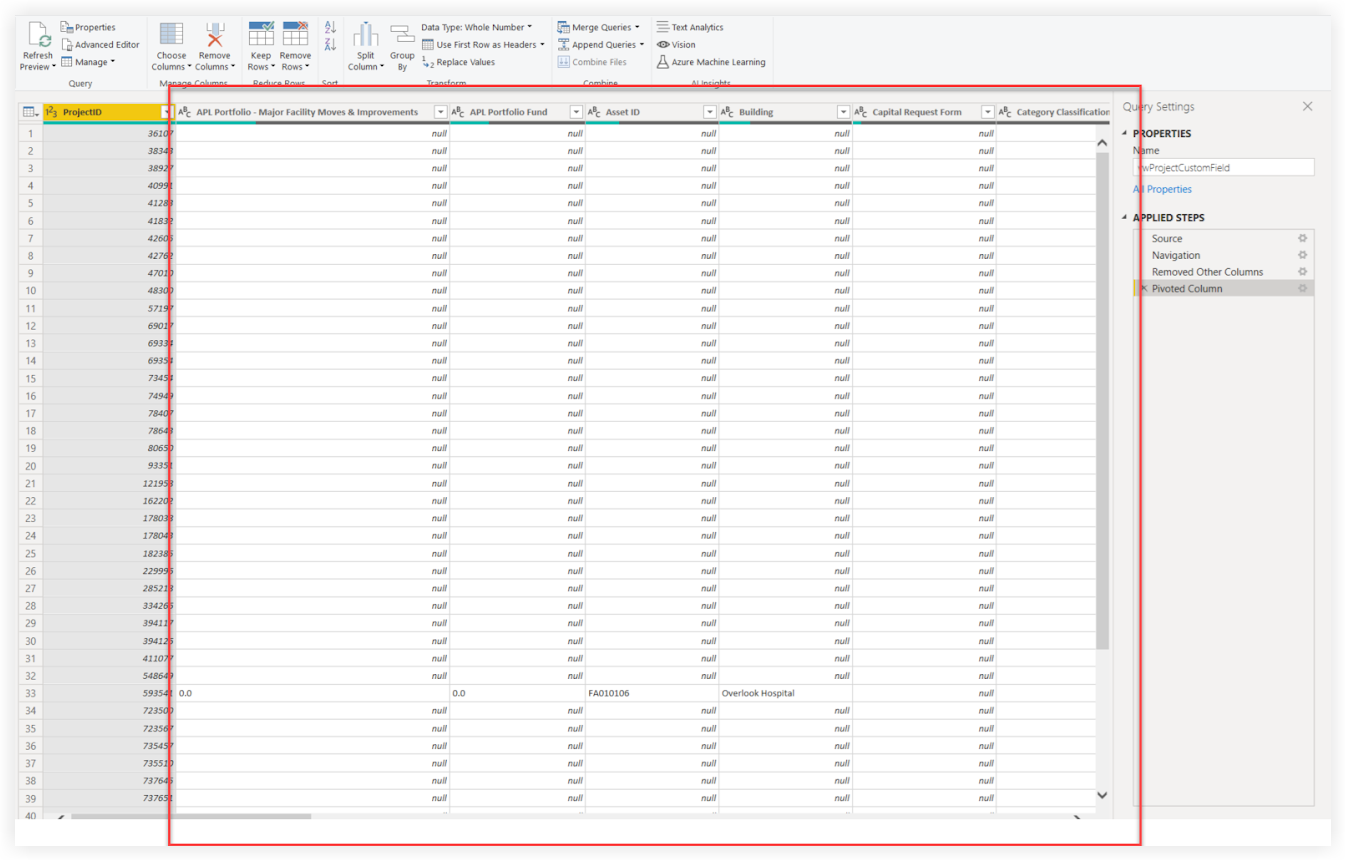
  14. If the update was successful, you will see your company's custom fields as individual columns in the query corresponding to their fieldset.

    Procore Analytics Project Custom Fields Update Successful

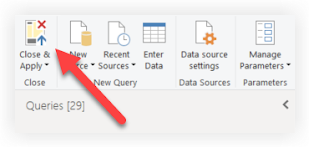
  15. Click Close & Apply.

    Procore Analytics Close And Apply

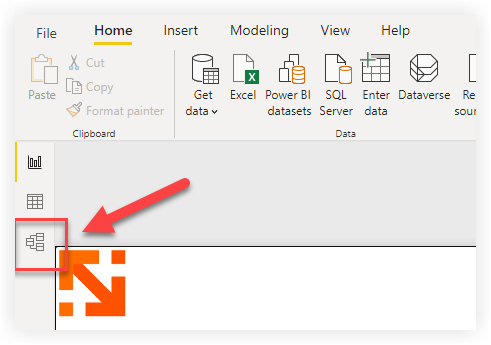
  16. On your report, click the Model view.

    Procore Analytics Model View

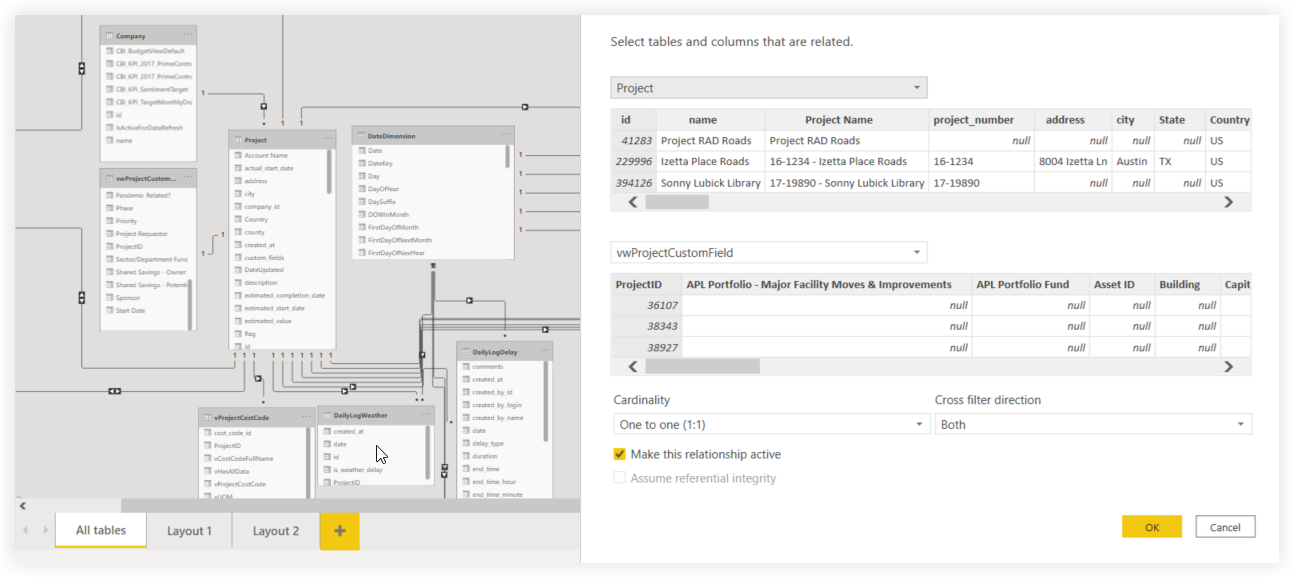
  17. Establish a relationship with the appropriate table and columns for the fieldset.

    • Project: Connect Project.ID to vwProjectCustomField.ProjectID

    • Prime Contracts: Connect PrimeContract.IDtovwPrimeContractCustomField.PrimeContract_ID

    • Purchase Orders: Connect PurchaseOrderContract.ID to vwPurchaseOrderContractCustomField.PurchaseOrderContract_ID

    • Subcontracts: Connect WorkOrderContract.ID to vwWorkOrderContractCustomField.WorkOrderContract_ID

      Procore Analytics Project Custom Fields Relationship

  18. Reconfigure your report's visuals by sourcing the applicable custom field data from the new table you've created.

  19. Save and publish your report.

See Also

Loading related articles...