Background
Only an invoice contact can sign lien waivers on a subcontractor invoice. The payor must invite the invoice contact to submit an invoice. See Send an 'Invite to Bill' to an Invoice Contact. Before submitting the invoice, the invoice contact can sign a lien waiver in the 'Pending Signature' state. If multiple invoice contacts are assigned on a contract, the first signature from any invoice contact is accepted.
Is it safe to sign an unconditional lien waiver before receiving this invoice payment? Yes. For unconditional lien waivers, a GRAY banner indicates that your signature is hidden from the payor until the corresponding invoice is paid in full. Although it is uncommon to provide the payor with a signed lien waiver before receiving payment, you do have the option to manually unlock a signed unconditional lien waiver. For instructions, see Unlock a Signed Unconditional Lien Waiver as an Invoice Contact.
What if I don't have legal authority to sign lien waivers for my company? As an invoice contact, you can share signature authority with the appropriate person. To learn more, see Share Lien Waiver Signature Authority.
Steps
Open the invoice with the lien waiver to sign.
Click the Lien Rights tab.
In the Lien Waivers table, find the waiver and click Sign.
Note: The Sign button only appears when the lien is in the Pending Signature state.
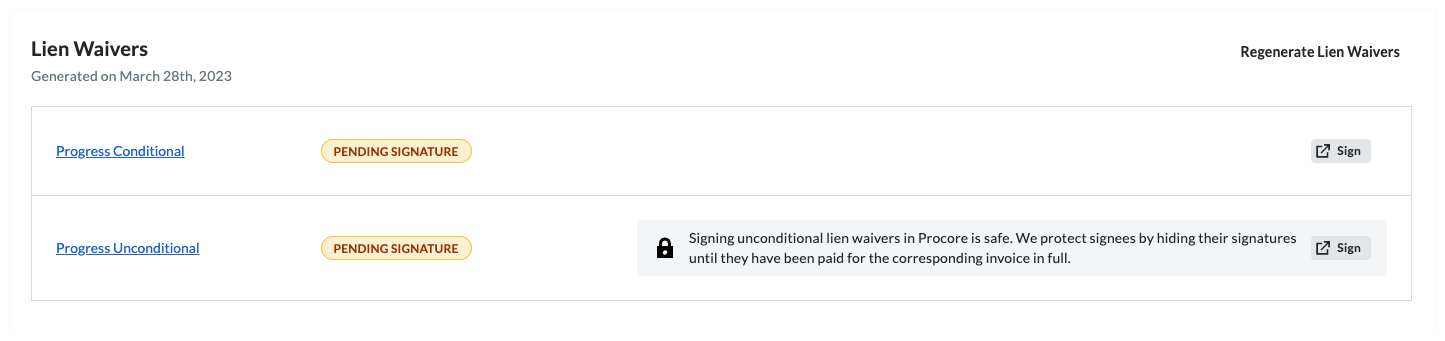
Is it safe to sign an unconditional waiver before payment? Yes. Procore Pay protects your legal interests by hiding your signature behind a gray banner until the invoice is paid in full. If necessary, you can manually Unlock a Signed Unconditional Lien Waiver.
What if I don't have signature authority? You can Share Lien Waiver Signature Authority to invite the appropriate person within your company to sign the document.
In the [Company Name] is Requesting a Lien Waiver window, click Fill Out & Sign. This opens the Fill Out Document window.
Choose between a Conditional or Unconditional lien waiver based on the type you are signing and click Next.
Conditional: Use this when you expect to receive a progress or final payment; signing only waives lien rights for the specified amount on the condition that payment is actually received.
Unconditional: Note that these waive lien rights immediately upon signing; Procore Pay protects signees by hiding these signatures until the corresponding invoice is paid in full.
Under Who should receive this document?, choose your signature option.
If the lien waiver template allows e-signatures, the eSign tab appears.
If the lien waiver template has the 'requires Notary' setting, both eNotary (for digital sessions) and Print + Sign (for traditional sessions) options appear.
Use the controls in the eSign or Print + Sign tab:
If the lien waiver template allows e-signatures, click the Fill Out and Sign button to sign the lien waiver. Once signed, Procore Pay appends a Certificate of Signature to the lien waiver when users compile or download the waiver.
If the lien waiver template has the 'requires Notary' setting, you must either:
Use eNotarization through OneNotary. Complete the notarization process digitally using IPEN or RON.
Print and Sign. Print the waiver, sign it, and then click Upload PDF to upload your signed copy.
Signature. The signature block includes a default signature for use when signing a lien waiver. To change your signature, click Update Signature. Then type, draw, or upload a new signature.
Requester. To add new recipients, click the Add Recipient list to select one of your existing contacts or add a new recipient. When adding a new recipient, be sure to assign the contact a Contact Role and enter as much information for the contact as possible and click Save.
Email Options: To add a note to accompany the email, enter a message in the Add a Note box. To send a copy to yourself, type your email address in the Send a Copy To box.
When you are ready to send the lien waiver to your recipients, read the Terms of Service provided and click Accept Terms and Send Document.
Once you are done signing the lien waivers you will come back into the Procore Invoice and you will need to click one of these buttons:
To save a Draft invoice, click Save as Draft. You can complete it later before the Due Date.
To send your completed invoice for review, click Send. This changes the invoice's status to Under Review and sends the invoice administrator an email.

See Also
Loading related articles...
 Procore Pay is available in the United States. It is designed for General Contractors and Owner-Builders who act as their own General Contractors on a job. Procore Pay extends the Invoice Management functionality in the Procore web application to handle the payment process between general and specialty contractors.