Create and View an RFI Report
Things to Consider
Prerequisites:
The Reports tool must be an active tab on the project. See Add and Remove Tools on a Project.
Limitations:
Any report made before 1/8/2015 will appear as a company-wide report unless a user with 'Admin' level permission to the RFIs tool and 'Admin' level permission to the Reports tool modifies it to 'Personal' or 'Project Specific.'
To create a custom report using the Reports tool, see Create a Custom Company Report or Create a Custom Project Report.
Additional Information:
There is no limit to the number of custom reports that you can create with the RFIs tool on a project.
When you create a custom RFI report for a project, the same report will be created for all other projects if it is a Global Report.
Steps
Create a New Report
View a Canned Report
Create a New Report
Navigate to the project's RFIs tool..
Click Reports > Create New Report.
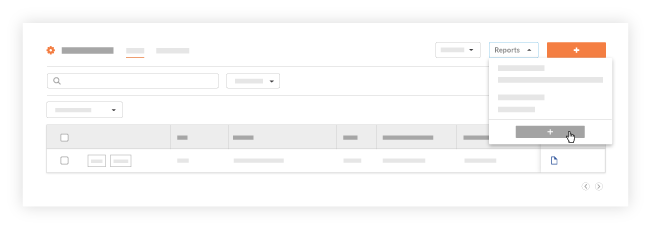
Continue by completing the steps in Create a Custom Project Report.
A link for your new report will appear under Custom Reports on the RFIs page. It will also be available for viewing in the Reports tool. See View a Report.
View a Canned Report
Navigate to the project's RFIs tool..
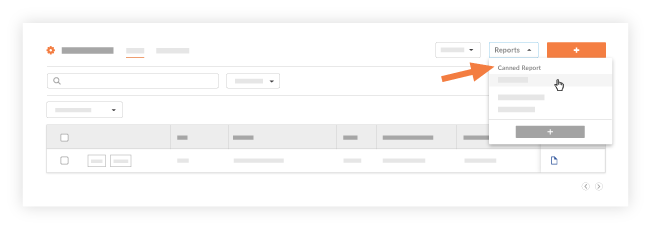
Click Reports and then choose one of the reports under the Canned Reports heading in the menu.
See Also
Loading related articles...