Set Up the hh2 Synchronization Client to Import Sage 300 CRE Tax Groups
Background
Before you can perform the integration steps described in Setup the Import Sage 300 CRE® Tax Groups Feature, you must perform the steps below on the hh2 synchronization client.
Things to Consider
Required User Permissions:
The company's
should supply the steps below to the company's IT administrator for the hh2 tool.A Procore Administrator is a user who has 'Admin' level permissions on all of the Company level Tools in Procore. Granting a user ‘Admin’ level permissions in the Company level Directory tool automatically assigns that user ‘Admin’ permissions on all Company level tools. Also called a Company Administrator.
The person performing the steps will need to log into the Sage 300 CRE® server using an account with administrative privileges.
Supported ERP Integrations:
Your company's Procore account must already be integrated with Sage 300 CRE®.
Limitations:
The sync process for tax groups/tax codes is NOT bidirectional. You will not have the ability to export tax codes from Procore to create tax groups in Sage 300 CRE®.
Steps
Log into your Sage 300 CRE® server using an account with administrative privileges.
Launch your company's hh2 Synchronization Client.

Click Connect.
Browse to the Local Connections tab.
Click Mappings.
Click Advanced Mappings.
Place a checkmark next to the following items:
Important! Do NOT remove any previously selected checkmarks. Doing so could negatively impact your existing Sage 300 CRE® configuration settings.
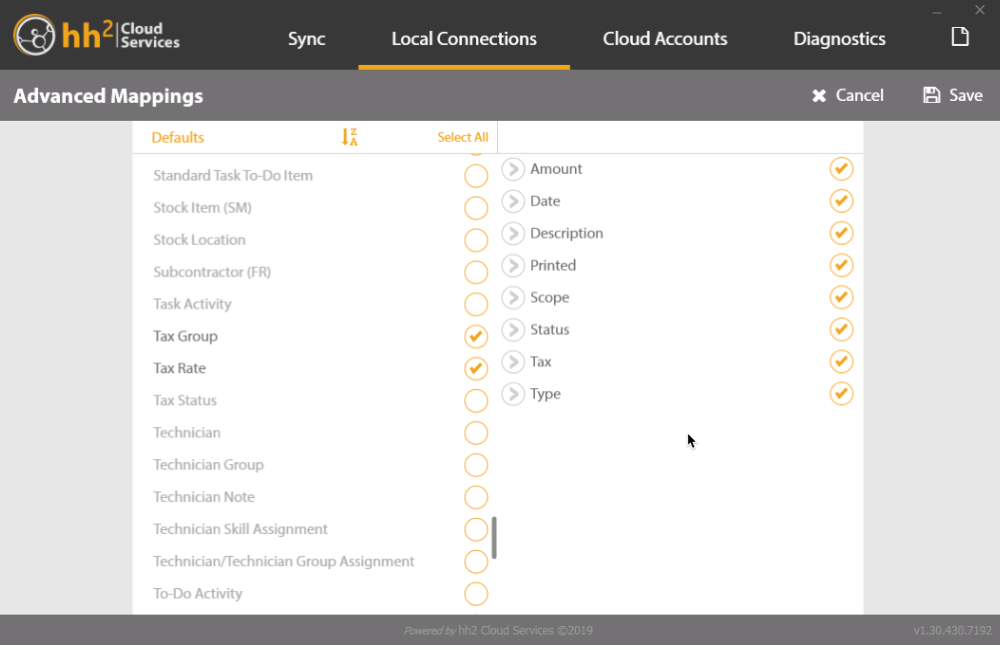
Tax Group
Tax Rate
Click Sync.
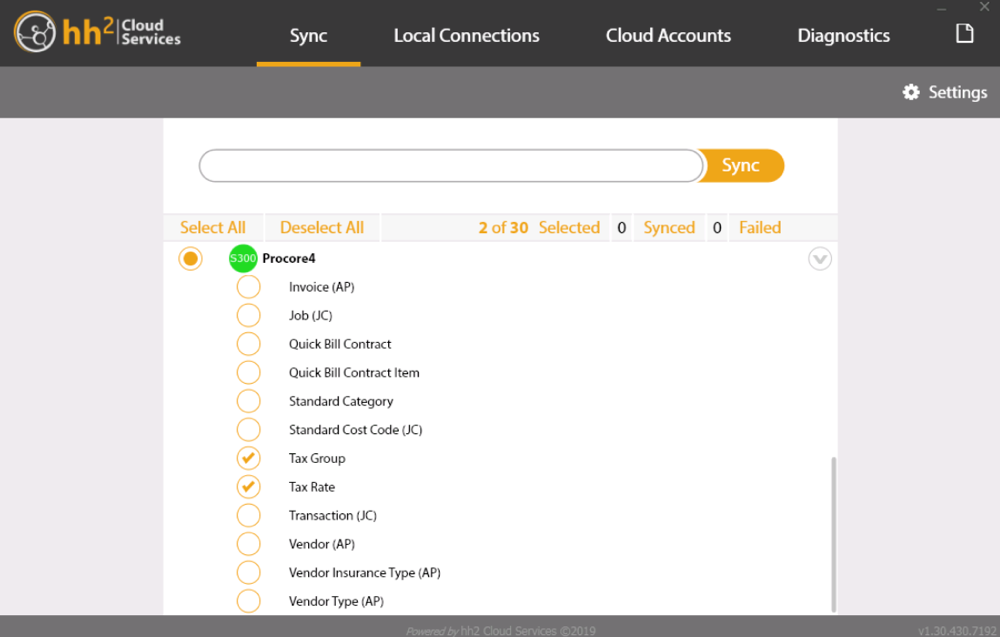
Click Settings .
Select a Sync Type of Deep and the timeframe of “The beginning of time”.
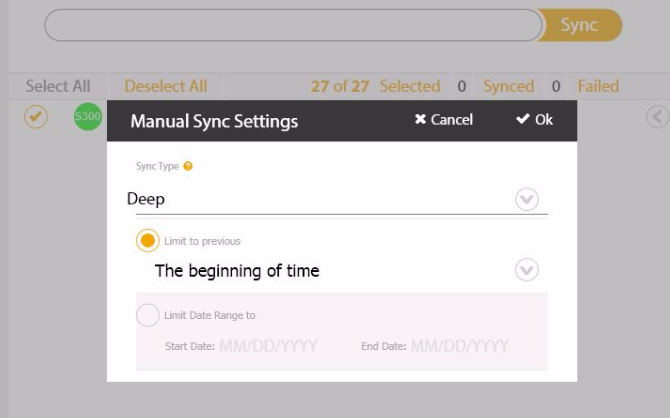
Click OK.
Click the arrow to expand the options under your connection as shown below.
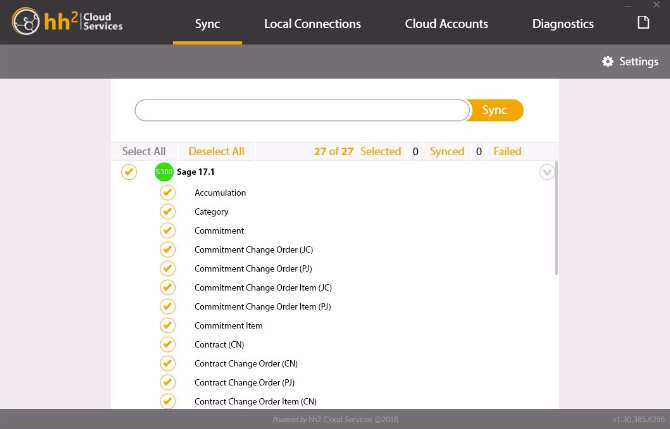
Click Sync.
After the sync is complete, you can close the hh2 Synchronization Client and log off of the Sage 300 CRE® server.
See Also
Loading related articles...