Rename a Submittal PDF Attachment
Things to Consider
Required User Permissions:
'Admin' level permissions on the project's Submittals tool.
Additional Information:
The submittal's status must be 'Open'.
Renaming a PDF attachment will automatically update its name in each step of the submittal's workflow where the attachment was included.
Only PDF attachments uploaded to a submittal can be renamed in the project's Submittals tool. If a PDF attachment was uploaded to another Procore tool and then added to the submittal, the PDF attachment can only be renamed by users with the appropriate permissions on the other tool.
Steps
Navigate to the project's Submittals tool.
Click the Items, Packages, Spec Sections, or Ball In Court tab. See Switch Between Submittals Views.
Click View next to the submittal with the PDF attachment you want to rename.
In the 'Submittal Workflow' table, click Open next to the PDF attachment you want to view.
Tip
Current attachments are indicated by a 'Current' label in the 'Version' column. See When is a submittal attachment labeled as 'Current' in the 'Submittal Workflow' table?
Click the  icon to open the 'Information' panel.

Under 'Name', click on the attachment's current name.
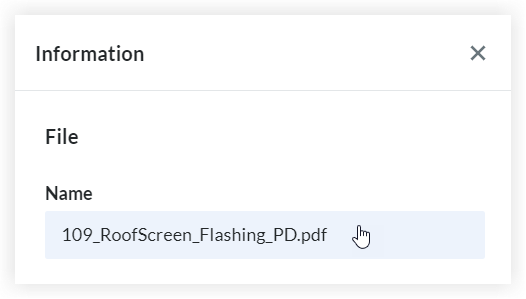
Enter a new name for the attachment and press ENTER on your keyboard.
In the 'Rename Attachment?' window, click Rename.
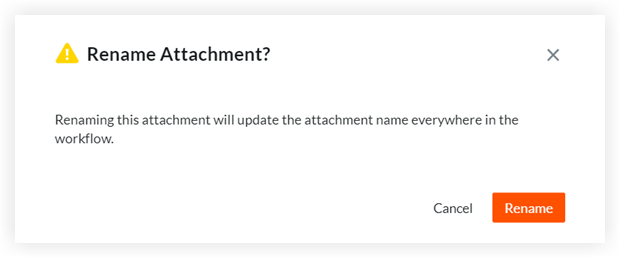
A banner displays to confirm the attachment was renamed.
Click Close to close the PDF viewer and to return to the submittal.