Create a Custom Time Type
Background
By default, Procore includes several default pay types (i.e., Regular Time, Overtime, and so on) for use on a timecard entry (see Create a Timecard Entry or Create a Timesheet). If your organization utilizes additional pay types, you can create custom time types to then select from in the Time Types drop-down list.
Things to Consider
Required User Permissions:
'Admin' level permissions on the company's Timecard tool.
Default Time Types:
Regular Time
Double Time
Exempt
Holiday
Overtime
PTO
Salary
Vacation
Prerequisites
Your company's Procore Administrator must request to enable the Company level Timecard tool in Procore.
Steps
Navigate to the company's Timecard tool.
Click the Configure Settings
 icon.
icon.Scroll to the 'Time Types' section.
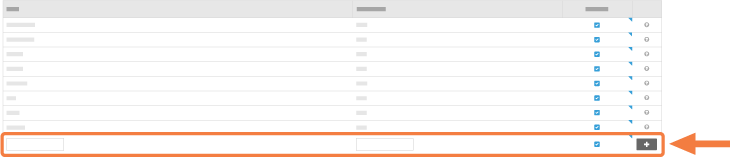
Do the following:
Type: Enter a new time type in the box provided.
Abbreviation: Enter an abbreviation for the time type in the box provided.
Available? Keep the checkbox marked if you would like the pay type to appear in the "Time Type" drop-down menu when entering a timecard entry.
Click Add.
This adds the new time type to the list. Your new time type(s) are now available for use in the "Time Type" drop-down list in the Timecard (see Create a Timecard Entry) and/or Timesheets (see Create a Timesheet) tools.
See Also
Loading related articles...