What layouts are available for iPad?
Answer
Layouts
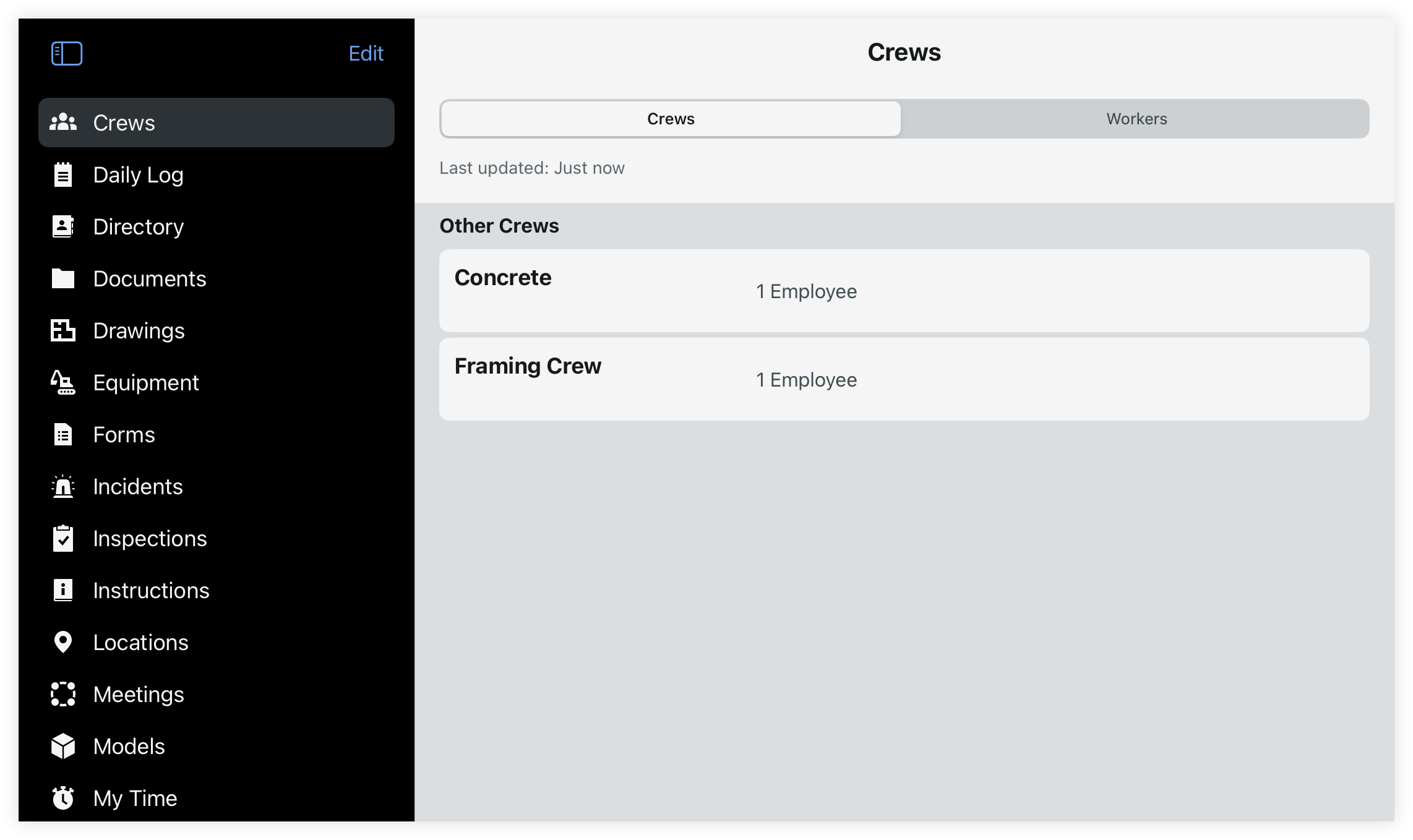
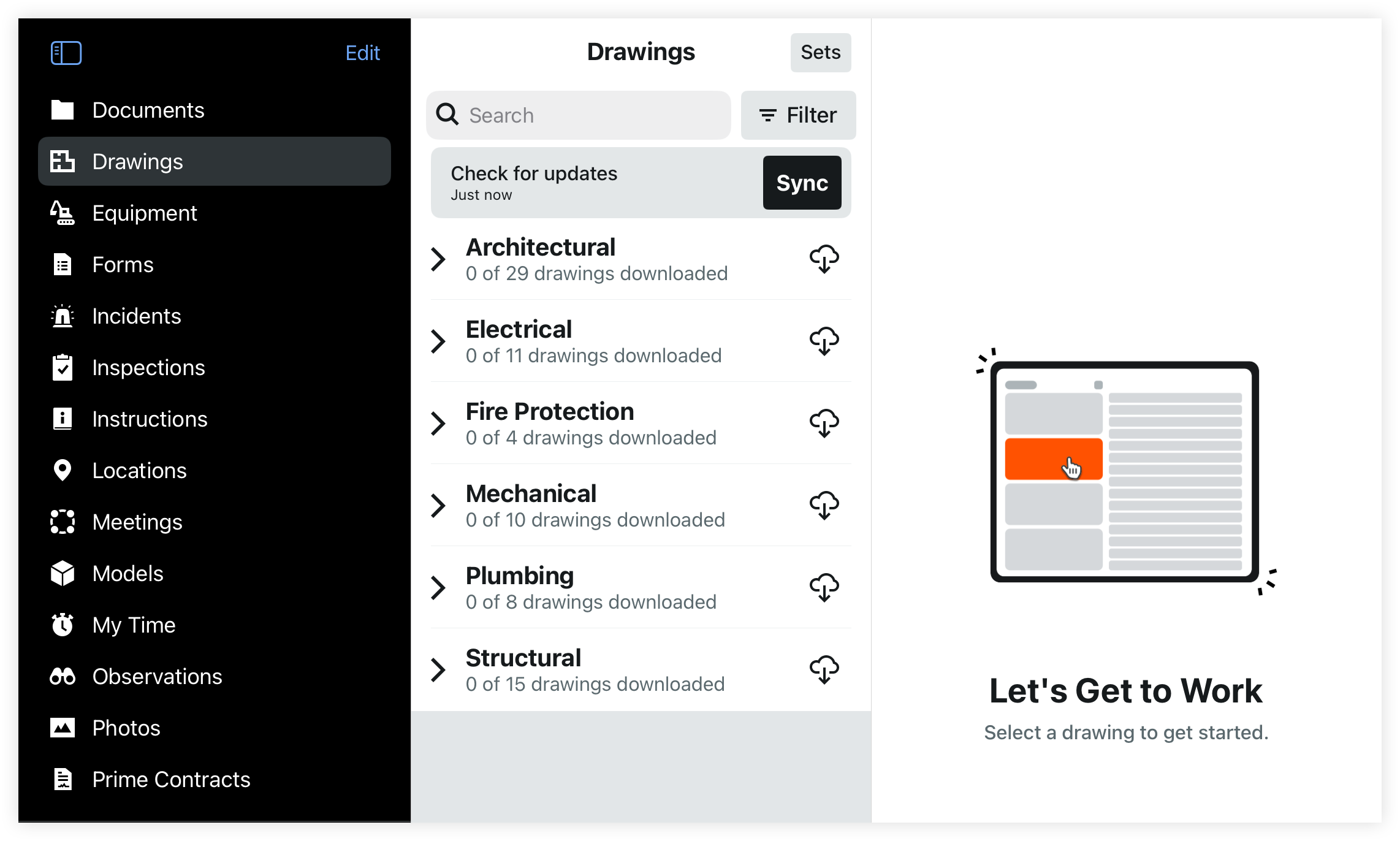
Two-column and three-column layouts that enhance Productivity and multitasking in the field. The multi-column tablet experience enabled user to view sidebar, list and details simultaneously, reducing redundant navigation and streamlining workflows.
Tap the menu  icon to show and hide the tools menu.
The two-column layout is available across the application on iPad. The following tools have a three-column layout to display the tools menu, list and detail views simultaneously:
Documents
Drawings
Specifications
2 column layout |
3 column layout |
Configure side menu
Tools in the side menu are alphabetised by default. You can mark some tools as favourites to show at the top and configure the order of all tools.
Open the Procore app on an iOS mobile device.
Tap the side menu
icon.Tap Edit.
Select favourites
Tap the star
 icon next to each tool to move it to the 'Favourites' section.
Arrange tool order
Tap and hold the arrange
 icon to drag tools up or down within their respective sections.
See Also
Loading related articles...