What tool names and terms are different in Procore for main contractors, owners and speciality contractors?
Answer
At Procore, we know that each type of construction collaborator utilises their own vocabulary in their everyday business activities, so we have created what we refer to as "Point-of-View Dictionaries" for main contractors, owners and speciality contractors. These dictionaries change Procore's default terminology in the platform to account for the needs and preferences of each distinct audience.
When you implement a point-of-view dictionary in your environment, certain tool names and terms change in the user interface depending on the dictionary chosen. Currently, these dictionaries are only available in US English and the default dictionary is designed for main contractors. To access the dictionary preferred by owners or speciality contractors, you will first need to work with your Procore Administrator at your company and your Procore point of contact (who can change your company's default dictionary). After that, you can use the desired dictionary on a project or on your individual user account. Learn how to apply the dictionary options.
Tool Name and Term Differences
Construction Takeoff & Estimating
This table shows the differences in tool names (bold) and terms across the point-of-view dictionaries for Construction Takeoff and Estimating. These dictionaries are available in US English only. The default dictionary is designed for main contractors, which means that you will need to work with your Procore Administrator at your company and your Procore point of contact to access the other dictionary options.
General Contractors English (United States) - Default | Owners English (Owner Terminology V2) | Specialty Contractors English (Specialty Contractor Terminology) |
|---|---|---|
Bid Board | Portfolio Planning | Bid Board |
Due Date | LOI Expiration Date | Due Date |
Estimator | Developer Agent | Estimator |
Name | Opportunity Name | Name |
Total Sales | Feasibility Cost | Total Sales |
Project Financials
This table shows the differences in tool names (bold) and terms across the point-of-view dictionaries for Project Financials. These dictionaries are available in US English only. The default dictionary is designed for main contractors, which means that you will need to work with your Procore Administrator at your company and your Procore point of contact to access the other dictionary options.
Main Contractors | Owners | Speciality Contractors |
|---|---|---|
Payment applications | Payment applications | Progress Billings |
Owner | Funding | Owner |
Owner/Client | Owner/Client | MC/Client |
Main Contract Variation | Funding Variation | Client Contract Variation |
Main Contracts | Funding | Client Contracts |
Revenue | Funding | Revenue |
Subcontract | Contract | Subcontract |
Subcontractor | Contractor | Subcontractor |
Subcontractor Bill of Quantities (SBOQ) | Contractor Bill of Quantities (CBOQ) | Subcontractor Bill of Quantities (SBOQ) |
How to Apply the Dictionary Options
To access the dictionary preferred by owners or speciality contractors, you will first need to work with your Procore Administrator at your company and your Procore point of contact (who can change your company's default dictionary). After that, you can use the desired dictionary on a project or on your individual user account as follows:
Project-Level Setting
User-Level Setting
Project Level Setting
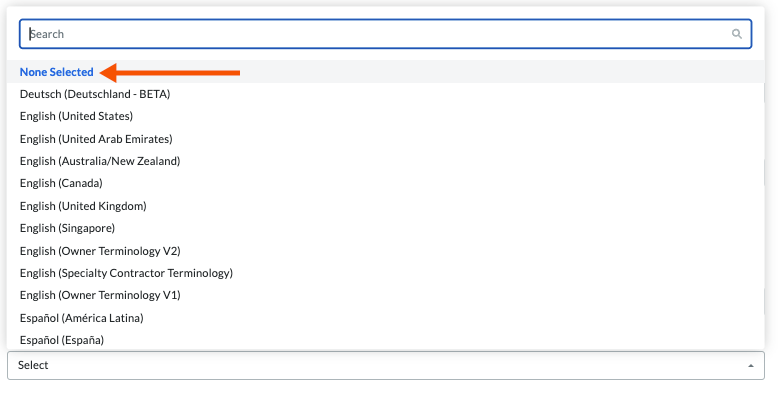
After your company implements the dictionary preferred by owners or speciality contractors, a project administrator should adjust the 'Language - Country' menu on the General page under 'Project Settings' to 'None Selected' in the Project level Admin tool.
User Level Setting
After your company implements the dictionary preferred by owners or speciality contractors, Procore users should adjust the setting in the 'Country - Language' menu to 'None Selected' in My Profile Settings.