Create a Company level snag list item template
Background
If you're a Snag List tool admin, you may find it useful to add custom snag list item templates. While Procore provides a default library of common snag list items for all companies, you can add your own custom templates for snag list items specific to your project. These templates can be organised by type and configured to include a default trade, snag manager, assignee and final approver for the item. These templates are only available for use on a mobile device; when a team member creates a new snag list item from a mobile device, they can select one of these templates, which will auto-fill fields with default information. You can then add or edit any information as needed.
Things to Consider
Required User Permissions:
'Admin' level permissions on the Company level Admin tool.
Additional Information:
Snag list item templates created at the Company level will be dynamically added to all projects in the company.
Users with 'admin' level permission to the Snag List tool can deactivate templates at the Project level if a certain template does not apply.
Steps
Navigate to the Company level Admin tool.
Under 'Tool Settings', click Snag List.
Choose from these options:
To configure a snag list item template for a category, do the following:
- Note: If no categories are present, follow the steps in Create a snag list item template category at the Company level.
Category. Select the category for which the snag list item template will apply. This is only for organisational purposes.
Template name. Enter the name of the snag list item template. When a user chooses to add this snag list item to a snag list, this defines the item name.
Trade: Select the trade to apply to the snag list item. Trades can be added to this list using the Admin tool. See Add a custom trade.
To apply a trade to an entire category, complete the following:
Trade. Next to the desired category, select the trade that you want to apply to all the snag list item templates in that category. Trades can be added to this list using the Admin tool. See Add a custom trade.
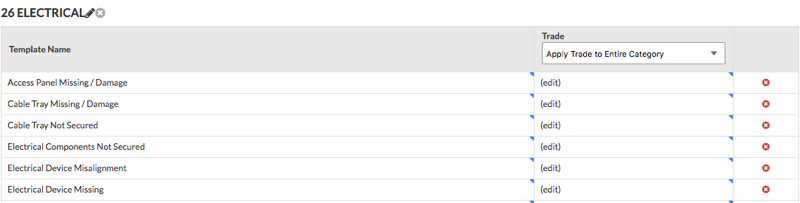
When the 'Apply trade to category' box appears, click Continue to apply that trade to the all of the snag list item templates in that category.
Click Submit.

Next Steps
Optional: Navigate to the Project level Snag List tool and add a default assignee. See Configure advanced settings: Snag List.
See Also
Loading related articles...