Install an application from the Procore marketplace

Background

As a Procore administrator, you have the ability to install an application from the Procore marketplace to your company in Procore. You can install an application while you are in Procore or install one directly from the marketplace. There are two types of applications that can be installed:

  • Agentic / AI-enabled applications: Applications containing AI agents and Model Context Protocol (MCP) servers. These applications enable AI capabilities across systems while keeping external data in its host system and Procore data securely inside Procore. After installation, administrators configure which projects the AI components apply to.

  • Embedded applications: Applications that launch and display directly within the Procore web interface.

  • Data connection (DMSA) applications: Applications that import, export or sync data between Procore and external systems via APIs. These require setting up a permission template for the application's user account in the company Directory tool.

You can verify an application's type at any time by viewing your installed applications list in the company's admin tool.

 Note

Some applications may list multiple types (e.g., both Embedded and Data Connection or Embedded and Agentic). In these cases, follow the specific configuration and scoping steps required for each component.

Things to Consider

  • Required User Permissions:

    • 'admin' level permissions on the company's admin tool and Directory tool.

Discovering and filtering AI enabled applications

When browsing the Procore marketplace, you can filter and evaluate applications based on their AI capabilities:

  1. Navigate to the Procore marketplace.

  2. Use the marketplace search filters to filter by capability.

    How to filter for agentic apps in Procore Marketplace
  3. Click on an application tile to review its detail listing.

  4. For AI enabled applications, the listing provides plain language disclosures outlining:

    • Agent capabilities: What actions the AI agent can perform.

    • Connected systems: Which external data sources or MCP servers the application connects to.

    • Data boundaries: Plain-language verification that data is brokered securely across systems without being copied or moved into external training sets.

After installation, learn how to use an agent in Procore AI.

Installing directly from the Procore marketplace

If you are already browsing the marketplace or want to install an application directly from the external site, follow these steps:

  1. Navigate to the Procore marketplace.

  2. Click Log In, enter your Procore credentials and click Log In again.

    • Note: If you are a Procore administrator for more than one company, you will be prompted to select the specific company you want to log in to and install the app in.

  3. Locate the application you want to install and click its tile.

  4. Click Install application.

  5. Review the installation details on the 'Install application' modal:

    1. For Data Connection applications, this modal shows the target company and the specific tool permissions you are granting to the application.

  6. Click Install to confirm your selection and proceed.

  7. Click Close on the Installation successful window.

Installing from within Procore

If you are already logged into the Procore platform, you can initiate the installation process directly from your administrative setting:

  1. Navigate to the Company level Admin tool.

  2. Under 'Administrative settings', click Application management.

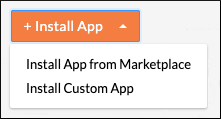
  3. Click the + Install application button and choose Install application from marketplace. Your browser will automatically redirect you to the Procore marketplace.
    Install App Button

  4. Navigate to and click the tile for the app you want to install.

  5. Click Install application (or Log in to install). You will be guided through the remaining installation prompts.

For embedded applications: Project configuration

  1. Click Close in the 'Installation successful' window.

  2. Click + Create configuration.

  3. Enter the following information:
    Note: An asterisk (*) below indicates a required field.

    • Projects*: Select the specific project(s) in Procore where this application configuration should be applied.

    • Global projects config: Mark this tickbox to automatically apply this application configuration to all active projects as well as any future projects created in your Procore company account.

    • Company level config: Mark this tickbox to make this application configuration available at the Company level, allowing users to launch the application directly from the top navigation header menu across Procore.

    • Title*: Enter a display name for this application configuration.

    • Smartsheet ID*: Enter the unique ID associated with your target Smartsheet sheet, report or Dashboard.

For agentic applications: Project configuration

  1. Edit the application capabilities on the configuration tab:

    1. Select Manage next to the capability you want to edit.

    2. Click Configure.

    3. Select any relevant features.

    4. Click Save configuration.

See Also

Loading related articles...