Delete tiered locations from a project
Background
Locations give you the ability to link different Procore items (RFIs, submittals and more) to specific locations on a job site. This helps project team members to identify the exact location on a job site where a defect was observed, where materials are to be installed or where a project variation occurred.
Things to Consider
Required User Permissions:
You need one of the following:
'Admin' level permission on the project's admin tool.
'Read Only' or 'Standard' level permission on the project's admin tool with the 'Manage location' granular permission enabled on your permission template.
Additional Information:
When you delete a location, the selected location and any of its sub-locations are permanently removed.
Steps
Take the following steps based on how your location hierarchy was created and which tool you are using:
Manually created or imported (admin tool)
Generated from Drawings (Admin tool)
Generated from Drawings (Drawings tool)
Delete manually created or imported locations
Navigate to the Project level Admin tool.
In the 'Project settings' menu, click Locations.
Locate the desired tier.
Click the vertical ellipsis (⋮) and choose Delete.
As shown in the example below, the system removes the selected location (e.g., Level Four) and all of its sub-locations (e.g., East and West).
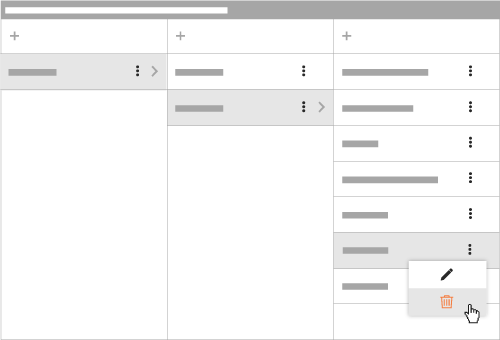
At the 'Delete Warning' message, click Confirm.
The system removes the location and any sub-locations. It also disassociates any items in Procore that have been assigned to that location and its sub-locations.
Delete locations generated from drawings from the admin tool
This experience is available in Australia, Canada, Ireland, United Kingdom, United States and New Zealand.
Navigate to the Project level Admin tool.
Under the 'Project settings' menu, click locations.
Click Edit location hierarchy.
Select Skip Drawings and Edit to edit existing location.
Click the vertical ellipsis
 next to a location. Click Delete, then take one of the following actions:
Select Delete boundary to delete the boundary, but maintain the location name and data.
Select Delete a location. Then click Delete to confirm.
Note: Deleting a location is permanent and cannot be recovered. Deleting a location also deletes all of its sub-locations and disassociates any items, such as RFIs and submittals.
Delete location generated from drawings from the Drawings tool
This experience is available in Australia, Canada, Ireland, United Kingdom, United States and New Zealand.