View item location
Background
After you have created your list of project locations, you can associate items like RFIs, submittals and snag list items with your locations. When viewing locations from the Project level admin tool and the Drawings tool, you can see items associated with each location.
Things to Consider
Required User Permissions:
'Read Only' or higher level permission on the project's admin tool.
Users can only see items associated to a location if they have permission to view that item in its source tool.
You can see items for the following tools:
Snag List
Photos
Submittals
Site Diary
RFIs
Observations
Inspections
Steps
From the admin tool
From Drawings
View item location from the admin tool
Navigate to the project's Admin tool.
Click locations.
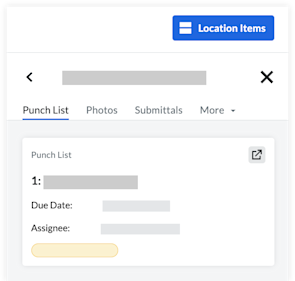
Click View location items to open the side panel.
OR
Click View location hierarchy. Then click Location items to open the side panel.Click the location on the list or heat map to show the item for that location.
Click each tab to see items for that tool.
View item location from drawings
This experience is available in Australia, Canada, Ireland, United Kingdom, United States and New Zealand.
Navigate to the Drawings tool.
Click the drawing area.
Click View location hierarchy.
Click Location items to view items in Procore that are associated with that location.
Click each tab to see item for that tool.
Click the location on the list or heat map to show the item for that location.
Click each tab to see items for that tool.