Allow collaborators to submit site-initiated variations
Background
A collaborator is a person or company who has agreed to perform work for you or your company, such as an external contractor or vendor. If you want your collaborators to have the ability to submit potential variations for their commitments in Procore, you can complete the steps below.
Things to Consider
Required User Permissions:
'admin' level permission on the project's commitment tool.
Additional Information:
To create new budget codes on a variation that were not previously in the contract's scope, the user account must be granted edit access to the contract's Bill of Quantities (BOQ) with the following granular permissions: 'Update work order contract' and 'Update purchase order contract'.
Steps
Perform the steps to set the Contract configuration setting on the commitment tool
Navigate to the project's commitment tool.
Click Configure settings.
Place a mark in these tickboxes:
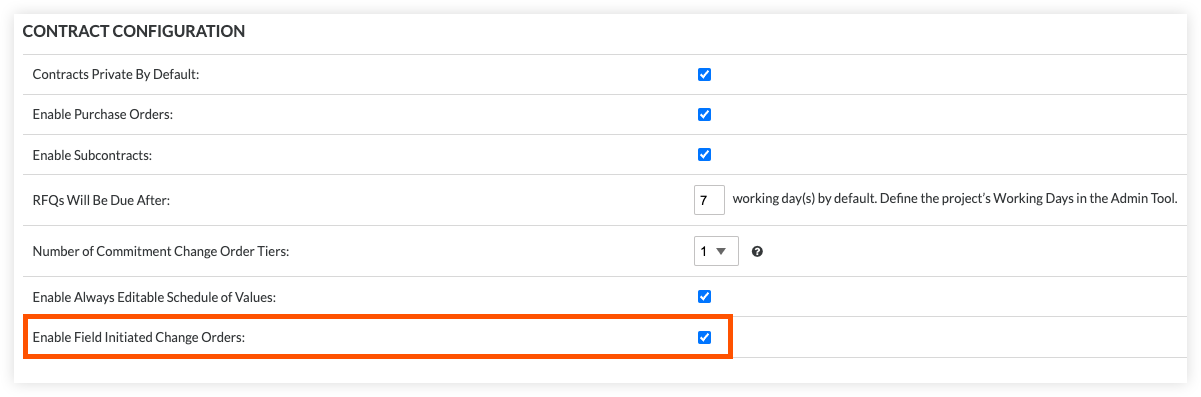
Enable site-initiated variations
This setting allows users to create variations from a commitment without granting them access to the change events tool.Allow Standard level users to create CVs or PVs
This setting provides users who have been assigned 'Standard' level permissions on the tool with the added privilege of creating commitment variations or potential variations when the number of commitment variation tiers is greater than one.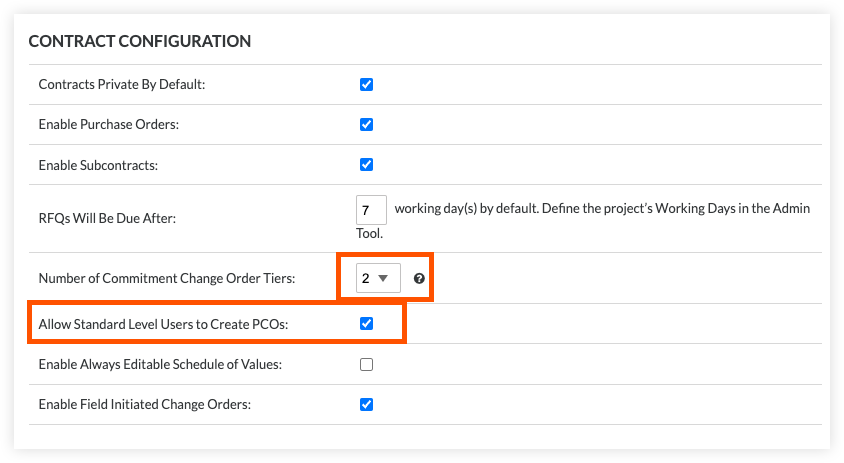
Note: If your project uses 1-tier variations, this setting is replaced by "Allow Standard users to create PVs." The CV creation setting is exclusively available for two- and three-tier configurations.
Add a user account for the collaborator to the project's Directory tool.
First, create a Procore user account for the collaborator(s) that will be submitting site-initiated variations. You must add this user to the project Directory. See Add a user account to the project Directory or Bulk add users and companies to a project Directory.If you already created a project permission template for your collaborators, you can assign it to the collaborator when adding the user account.
If you do NOT want to create a project permission template, you can edit the user's record and choose 'Do not assign a template' from the 'Project permission templates' section and then manually set the permission detailed above.

Invite the collaborator to the Procore project.
In the Project Directory tool, you can then invite (or reinvite) the collaborator(s) to join the project. See Invite or reinvite a user to join a Procore project.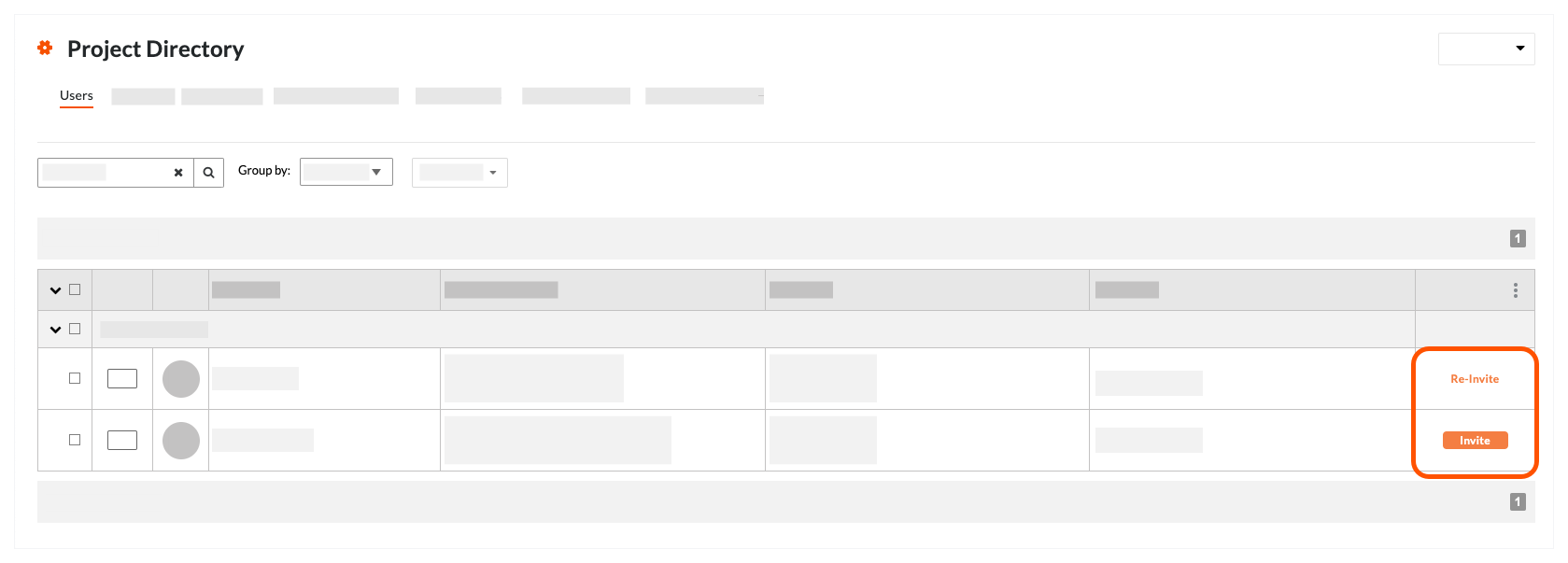
Add the user to the 'Private' list on the appropriate commitment contract.
Add the collaborator's name to the 'Select a Person' list in the 'Private' area of the contract as described in Create a subcontract. This ensures that the collaborator only has permission to view their own contract.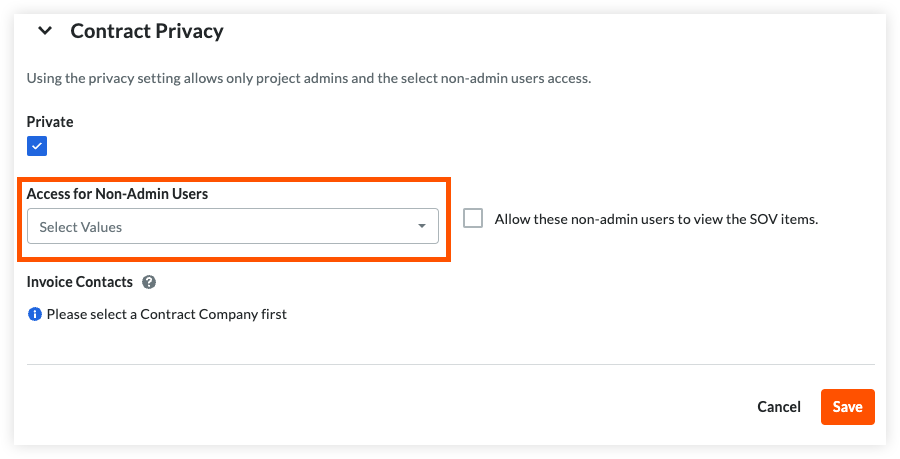
After the collaborator joins the project and the contract is 'Approved', your collaborator can create variations against the contract and Procore will use the data entered to automatically create a change event.
Next Step
See Also
Loading related articles...