Re-open a Site Diary
Things to Consider
Required User Permissions:
'Admin' permission on the project's Site Diary tool.
Prerequisites:
Additional Information:
After re-opening the day, entries will be able to be added, modified or removed.
Steps
A Site Diary can be re-opened in either the list or calendar view.
Re-open a day in the list view
Re-open a day in the calendar view
Re-open a day in the list view
Navigate to your project's Site Diary tool.
Navigate to the day that you want to re-open.
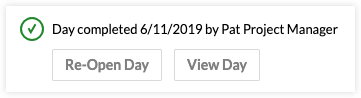
Click Re-open day in the banner above the day's Site Diary.

Re-open a day in the calendar view
Navigate to your project's Site Diary tool.
Click Calendar to navigate to the calendar view.
Click the day on the calendar you want to re-open.
Click Re-open day.
See Also
Loading related articles...