Set tenderer information for a company in the project Directory
Things to Consider
Tenderer information added in the Project level Directory is added to the Company level Directory.
To apply these settings to all projects, see Set tenderer information for a company in the company Directory.
Steps
Navigate to the Project level Directory tool.
Click the company tab.
Click Edit next to the company.
OR Click the company name.
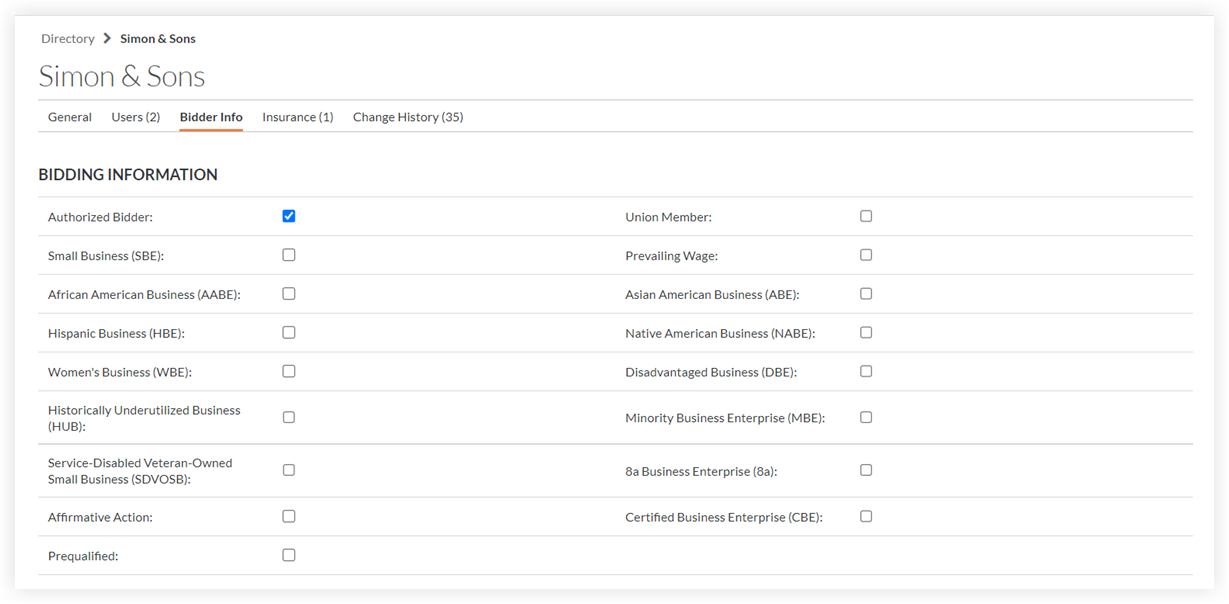
Click the Tenderer info tab.
Authorised tenderer: Mark this tickbox to designate an authorised tenderer. This is for reporting purposes only and does not affect Procore email.
Mark the tickboxes for any of the relevant attributes for the company.
Set trade and cost code so that the company will appear when searching by trade or cost code in the Tendering tool.

Trade: A classification for the company's work type (e.g., Electrical, Mechanical, HVAC). If your trades are not set up, see Add a custom trade.
Cost code: Select which cost code apply to this company.
Click Save.
Enter a comment in the 'Leave a comment' section.
Optional: Click the stars to rank the company and view this information when searching for tenderers in Procore.
Click Post comment.


See Also
Loading related articles...