Manage permissions for files and folders in the Project level Documents tool
Background
Managing permissions in the Documents tool gives you the ability to choose who has access to certain files and folders.
Things to Consider
Required User Permissions:
To manage permission for files and folders:
'admin' level permission on the project's Documents tool.
OR
'Standard' or 'Read Only' level permission on the project's Documents tool with the 'Set permission' granular permission enabled on the permission template.
Additional Information:
Users must have 'Read Only' or higher permissions on the project's Documents tool in order to be given access to folders or files.
Steps
Navigate to the Documents tool.
Select the file or folder you want to manage permissions for.
If the information panel is not already open, click the information
 icon.
Click Permissions.
The following actions are available:
If you want to make the file or folder private, mark the tickbox next to Make private.
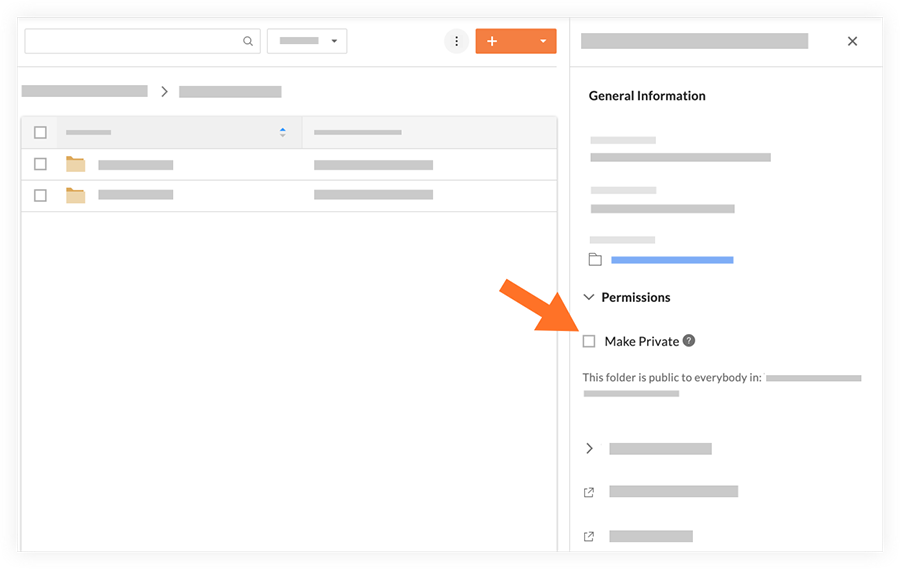
If you want to make the file or folder public, clear the tickbox next to Make private.
Note: If a parent folder is marked as private, all files or folders in that folder are automatically private. Private files and folders can only be accessed by 'admin' level users OR users who have the 'Access private folders and files' granular permission enabled on their permission template.
Important! In order for users to be able to access the private file or folder, you will need to select them in the Manage permissions window for the file or folder and its parent folder. After a user has permissions to a parent folder, they will automatically have permissions to folders and files within that parent folder.If the file or folder is already private and you want to manage which users can view it:
Click Manage permissions.
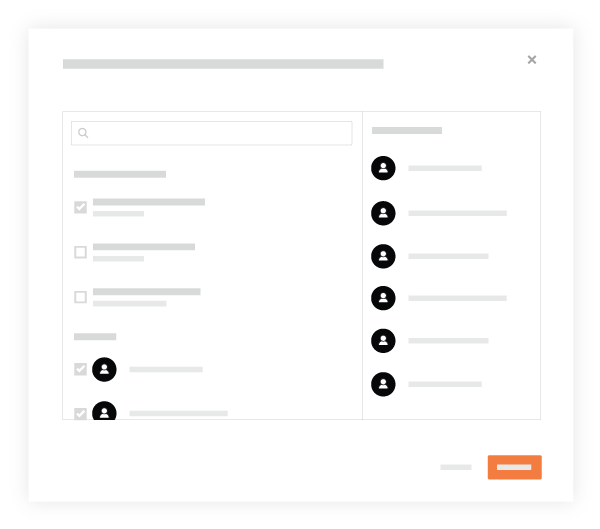
Select which users, permission groups and distribution groups you want to grant access to:
Mark the tickboxes next to those you want to grant access to.
Clear the tickboxes next to those you want to remove access from.
Click Update to save the permission setting for the file or folder.
See Also
Loading related articles...