Review an MCV
Accept an MCV
Reject an MCV
Review an MCV
Navigate to the company's enterprise resource planning integration tool.
Click main contract variations.
Under Filter main contract variations by, click Ready to export.
Note: All of the MCVs in this page were sent to the ERP integrations tool for accounting acceptance.
In the project's table, locate the desired MCV. Then choose one of these methods to review it:
To open the project's Main Contracts tool, click the Main Contracts hyperlink.
To open a PDF copy of the variation, click the PDF icon on the left side of the table.
To open the MCV in the main contract tool, click the MCV number (#).
Return to the Ready to export tab. Then continue with one of the following:
Accept an MCV
Reject an MCV
Accept an MCV
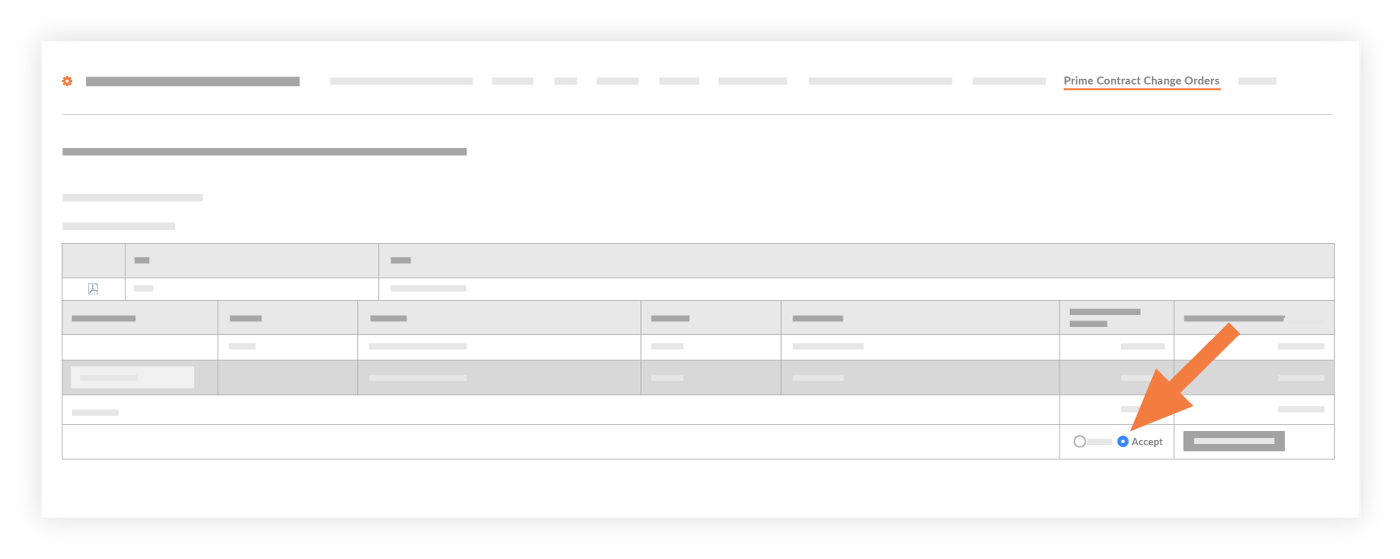
Locate the desired MCV in the main contract variations list.
Click Accept.
Enter the transaction date or leave as today's date.
Click Export to ERP .
This exports the MCV to your ERP system.
(Optional) To verify that the sync was successful, log into your ERP system and verify that your data appears as expected.
Reject an MCV
Locate the desired MCV in the main contract variations list.
Choose Reject.
Enter an optional comment and click Reject.
The following events occur:
The system removes the MCV from the enterprise resource planning integration tool and returns it to an editable state in the project's main contract tool.
The system sends an automated 'ERP MCV rejection notification' to the user who created the MCV. This alerts the user of the 'Reject' response.