Assign Default Cost Types To ERP Standard Cost Codes

Enterprise resource planning documentation

Each Procore-built enterprise resource planning integration offers its own unique feature set. Your integration might not support the action described on this page.

To learn about your integration and its supported features, see Which ERP integrations are supported by Procore?
Background

In the construction industry, cost types are often assigned to cost code to identify the specific work being performed on a construction project. To help project team better account for their cost (especially their internal cost), it is a common practice to assign multiple cost types to a single cost code.

To understand the relationship between these two objects, keep in mind:

  • A cost code is a code that defines the specific type of work being completed on a construction project. When using an with Procore, cost code are synced to individual segment item (a.k.a., 'cost code' on Procore's 'cost code' segment, which is a tiered segment. To learn more, see What are Procore's default cost code?

  • A cost type is a set of cost identified by a unique abbreviation or label. In Procore's WBS, 'cost type' is a flat segment with these default options: (E) Equipment, (L) Labour, (M) Materials, (O) Other, (OC) OC, (S) commitment, and (SVC) Professional Services. See What are Procore's default cost types?

You must first add cost codes to the ERP standard cost codes list in the Company Admin tool before assigning default cost types in the ERP integration tool.

Things to Consider

  • Required User Permissions

  • Additional Information:

    • You can assign one or more cost type(s) to each standard cost code. For example, both L=Labour and E=Equipment.

  • Not all integration support the cost type concept.

Steps

  1. Navigate to the company's enterprise resource planning integration tool.

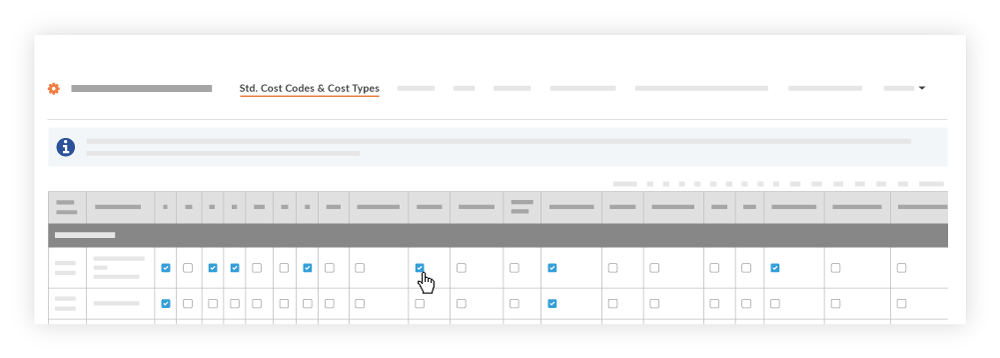
  2. Click the Std. cost code & cost types tab.

  3. For each enterprise resource planning standard cost code in your company's list, mark one (1) or more tickboxes to assign the code to one (1) or more cost types.

Note
  • To apply a specific cost type to all of the cost codes in the list, double-click the desired cost type column.

  • You can hover your mouse cursor over the column headings, to reveal a tooltip that shows the full name for the cost type.View Erp Standard Cost Codes And Cost Types Tab

  • The cost type assignments are automatically saved.

See Also

Loading related articles...