Sync job cost transactions from an integrated ERP into Procore

Enterprise resource planning documentation

Each Procore-built enterprise resource planning integration offers its own unique feature set. Your integration might not support the action described on this page.

To learn about your integration and its supported features, see Which ERP integrations are supported by Procore?
Background

If your Procore company account is integrated with your ERP, you can import job cost transaction data from your ERP into Procore. Once imported, the values of those transactions can be viewed in the 'direct costs' column on a budget line item. In addition, users who are assigned the appropriate granular permission can also click the values in the 'direct costs' column in the Budget tool to open a window showing detailed information about the item.

This feature provides users of a supported integration with the following features and benefits:

  • Add a 'direct costs' source column to your Procore project's budget view
    Provides authorised users with the ability to add a 'direct costs' column to your project's budget view.

  • Track ERP direct cost in a Procore budget
    Once the 'direct cost' column has been added to a budget view, project users with access permissions to the budget can view the lump sum totals from the ERP job cost transactions as a direct cost value on a budget line item. The value in this column shows your project's 'direct cost' total for all items in the 'Pending', 'Revise and Resubmit' and 'Approved' status.
    Note: An accounting approver can sync the job cost transaction details from the ERP on the Job cost tab of the ERP integration tool.

  • View direct cost transaction detail on a budget line item
    Project users with the 'View direct cost details' granular permission enabled on their permission template can click the hyperlink in the direct cost column of a budget line item to open the direct cost's details in a popup window. This granular permission is located in the 'Budget' section when configuring a permission template.

  • Choose which direct costs appear in your budget view
    Provides authorised users with the ability to show or hide certain types of direct costs. Procore imports direct costs from your ERP with types of subcontractor payment application (for payables against commitments), payment application (for non-commitment payables) and expense (for journal entries).

Things to Consider

Steps

  1. Navigate to the company's enterprise resource planning integration tool.

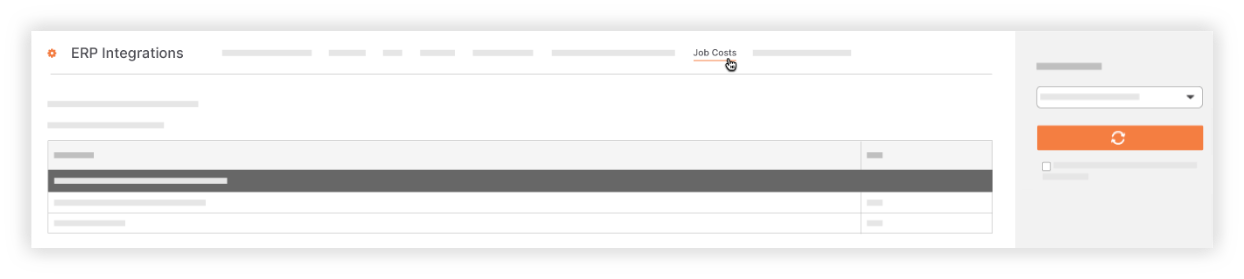
  2. Click the Job cost tab.
    Job Costs Select Project

  3. Select the relevant project from the Select a job drop-down menu.

  4. Click Sync job cost for selected job.

See Also

Loading related articles...