Configure Your View in the Estimating Tool
Things to Consider
Required User Permissions:
Required User Permissions for the Bid Board tool.
Required User Permissions for the Estimating tool.
Required User Permissions for the Portfolio Planning tool.
Steps
Do one of the following:
Navigate to the Bid Board or Portfolio Planning tool and select the project.
Navigate to the project's Estimating tool.
Click the Estimating tab.
Click the 'Configure'
 icon to open the table configuration menu.
The following options are available:
Row Height
Configure Columns
Row Height
Click the 'Configure' icon to open the table configuration menu.
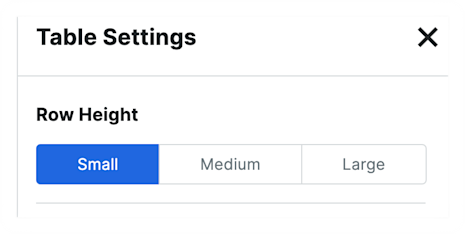
Row Height:
Select a default row height (small, medium, large) from the menu. The setting is automatically be applied to all rows in the Estimate.
Configure Columns
Click the 'Table Settings' icon to open the table configuration menu.
Show/Hide Columns:
Use the toggle switches to determine which columns will be displayed or hidden from the Estimating view.
Click a toggle ON
 to show the column.
 Click a toggle OFF
 to hide the column.
Check the box if you would like to Apply to all estimates in this project.
Click Save Changes.
See Also
Loading related articles...