Create an application configuration in a project

Background

As a Procore project user, you have the ability to create an application configuration for a specific project.

Things to Consider

  • Required User Permissions

    • User must be a valid contact in the Procore Directory tool.

 Important!

Note that project users, regardless of their permissions, are allowed to create application configurations, but are not allowed to edit or delete them. Procore administrators can, however, elect to prevent all project users from configuring applications in projects. Your Procore administrator can reach out to their Procore customer success manager to enable this setting.
Steps

  1. Navigate to the project you want to create an application configuration for.

  2. On the top navigation bar, click the Select an application.

  3. Click Application Management.

  4. Locate the application you want to create a project configuration for and click View.

  5. Click Configurations.

  6. Click Create configuration.

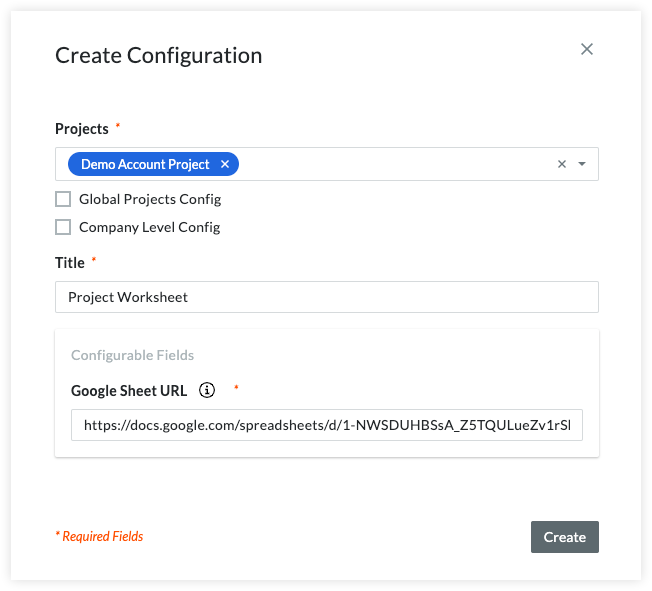
Create Config

  1. Choose the Projects you want the configuration to apply to or select Global projects config to have the configuration apply to all active projects in the company.

  2. Select Company level config if you want the application accessible from the 'Select an application' menu on the Company level header.

  3. Enter a title for the new application configuration. Application user will see this display name when using the 'Select an application' menu.

  4. Enter values for any configurable fields that are required for the application.

  5. Click Create.

 Note

If the Company level config option is not available on the Create configuration screen, the application you are trying to configure does not yet support Company level configurations.

See Also

Loading related articles...