Manage 'My profile settings'
Things to Consider
Steps
Log in to Procore. See Log in to Procore Web.
Click the 'Account & profile' icon in the navigation bar.
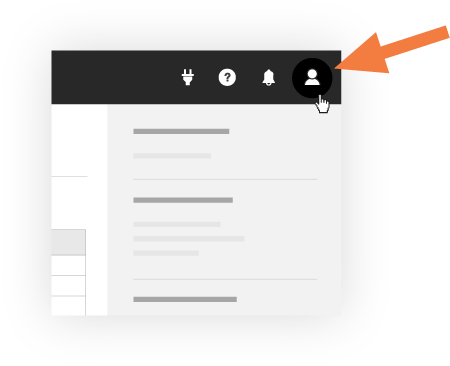
Or, if you have a different version of Procore, click the menu button on the top left and scroll to the bottom to choose 'View profile'.
Click My Profile Settings.
Click the following tabs to manage your settings:
Personal
Log in
Change your login ID email address for your Procore user account
Note: If your company's email domain is managed by single sign-on in Procore, only users with 'Admin' level permissions on the Company level Directory tool can change login email addresses for users in the single sign-on domain.
My connected apps
This tab lists all the authorised third-party
that have been granted access to your Procore account. You revoke access connected apps if needed.In Procore, a connected app refers to a third-party application built on the Procore OS platform by external developers. These applications are not owned, operated or supported by Procore. When you connect a third-party application to your Procore account, you are authorising it to both access and use your Procore account on your behalf. Authorised applications may be able to use your Procore account in various ways, which include (but are not limited to) accessing your Procore account, seeing your contact information and performing a variety of actions in Procore on your behalf.
Password
Favourites
Notifications
Click Update.
See Also
Loading related articles...