Create a New Project Model with Model Manager

Procore Model Manager - Beta Access & Feedback

The Model Manager (Beta) features and documentation are subject to change without notice. (Note: At the launch of the Beta, only 'Admin' level permissions are available. Additional permissions will be phased in during the product lifecycle).

To access the beta and provide feedback Show/Hide Details

  • How to Access: Participating companies must sign the Procore Beta Agreement. Once signed, your Procore Administrator coordinates with your Procore point of contact to enable Model Manager (Beta) on specific Procore projects.

  • How to Provide Feedback During Beta: Contact your dedicated Beta program lead.

  • How to report critical issues: Report breaking changes to Procore Customer Support. For general feedback or non-critical issues, contact your Beta program lead or Procore point of contact.

Background

With the Model Manager tool, tool Admins can set up a federated scene for the first time. You are prompted to choose a Common Data Environment (CDE) for your source files. Your CDE options are either the Project Documents or Procore Document Management (PDM).

Things to Consider

Steps

Follow these steps to create a new project model.

  1. Navigate to the project's Model Manager tool.

  2. Depending on your project configuration, choose one option to select your team's document repository:

    • Single Repository: If your project has one (1) repository (Document Management or Documents), simply click Create Project Model.

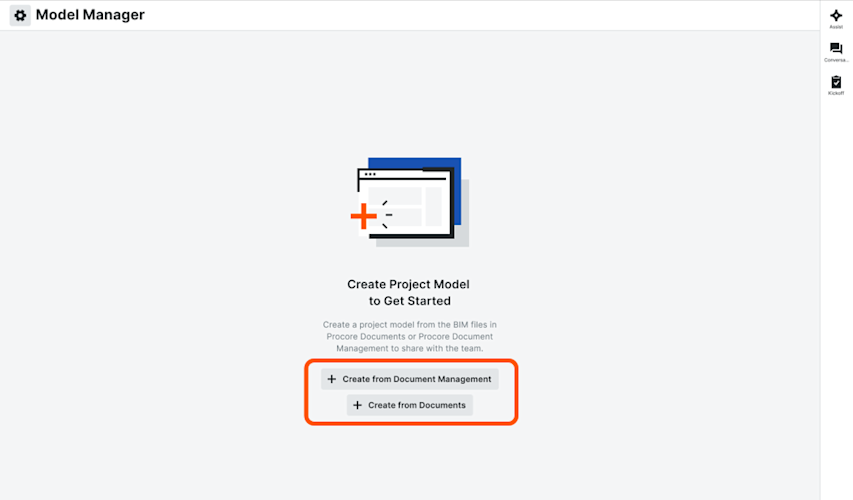
    • Multiple Repositories: If your project has all repositories, click Create from Document Management or Create from Documents.

Single Repository

Multiple Repositories

This page shows the Create Project Model button on the Model Manager Landing Page when the tool is in an empty state.

This image shows the Create from Document Management and Create from Documents buttons when the Model Manager tool is in an empty state and two document repositories are active in a Procore project.

Next Step

See Also

Loading related articles...