Federate a New Project Model with Model Manager

Background

As an Admin on the Model Manager tool, you have the ability to create a federated project model, which aggregates individual, discipline-specific source files into a single, navigable 3D environment. This allows you to maintain precise control over source file versions and user permissions, ensuring your team is operating from a "single source of truth" without compromising individual source file integrity. This centralized oversight simplifies your coordination workflow, ensuring field teams always access the most current, integrated design data.

Things to Consider

Prerequisites

Important

Always upload your discipline-specific model files to the project's document repository before adding them to the project model. For instructions, see:

Workflow

Diagram - Project Model Manager - Federate a New Project Model

Steps

Important

Always upload your discipline-specific model files to the project's document repository before adding them to the project model. For instructions, see:

Create a New Project Model

Only a tool Admin can create a new project model and select the project's document repository for federation.

  • Create a new project model in Model Manager (Beta) Show/Hide

    Follow these steps to create a new project model.

    1. Navigate to the project's Model Manager tool.

    2. Depending on your project configuration, choose one option to select your team's document repository:

      • Single Repository: If your project has one (1) repository (Document Management or Documents), simply click Create Project Model.

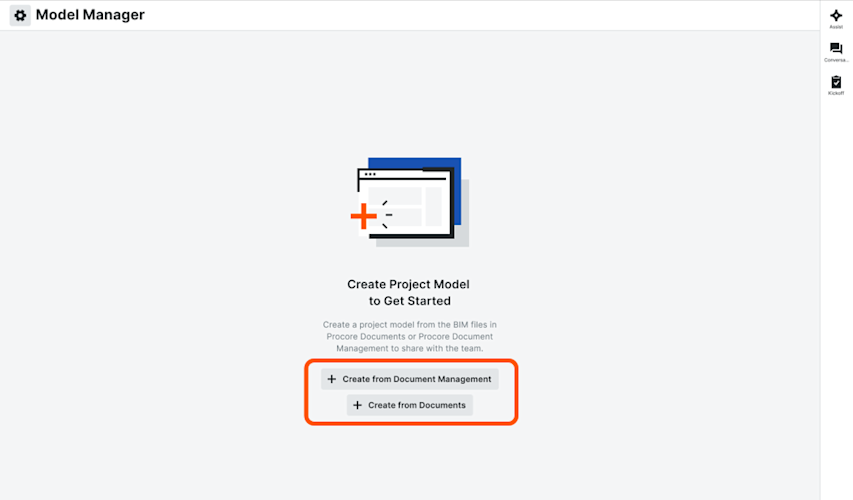
      • Multiple Repositories: If your project has all repositories, click Create from Document Management or Create from Documents.

    Single Repository

    Multiple Repositories

    This page shows the Create Project Model button on the Model Manager Landing Page when the tool is in an empty state.

    This image shows the Create from Document Management and Create from Documents buttons when the Model Manager tool is in an empty state and two document repositories are active in a Procore project.

Add Discipline-Specific Files to the New Project Model

Only a tool Admin can add files in the document repository to the new project model.

  • If using Document Management Show / Hide Steps

    In the Model Files card of the Model Manager (Beta), do the following:

    1. Click Add Files to open the Select Files from Document Management window.

    2. Under Saved Views, click Models.

    3. Select one or more model files from the Document Management tool. When grayed out, the file type is not supported.

    4. Mark the check box that corresponds to the file to add to the project model.

    5. Click Create Project Model.

    6. Once uploaded, you have these options.

      • Auto Update. Mark this check box to turn the automatic update feature ON. Procore detects new file versions in the 'Approved' or 'Approved with Comments' status.

      • Update. Click this button (if an update is available) to update specific model files.

      • Open. Click the Name link to open a specific model file in the viewer.

  • If using Documents Show / Hide Steps

    Follow these steps from the Model Files card of the Model Manager (Beta) landing page.

    1. Click Add Files to open the Select Files from Documents window.

    2. Under Folders, highlight the folder containing the project's trade-specific model files

    3. Mark the check box that corresponds to the file to add to the project model. Select one, multiple, or all model files from the Documents tool. When grayed out, the file type is not supported.

    4. Click Create Project Model to federate the project model.

    5. Once uploaded, you have these options:

      • Auto Update. Mark this check box to turn the automatic update feature ON. Procore detects new file versions in any status.

      • Update. Click this button (if a new file version is available) to update the file version.

      • Open. Click the Name link to open a specific model file in the viewer.

Update File Versions in an Existing Scene

After federating a project model, you can update files when a new version is available in the project's document repository (Documents or Document Management).

  1. Navigate to the Model Manager (Beta) tool.

  2. Go to the Model Files card to look for a notification in the Version Update column.

    Tip

    How do I track pending updates? Look for a notification or an Update button in the Version Update column. The criteria for these alerts depend on your document repository:

    • Document Management: Notifications appear when a new version reaches 'Approved' or 'Approved with Comments' status.

    • Documents: Notifications appear for any new version created.

  3. Scroll to the file in the table and click Update .

  4. Refresh you browser to view the updated federated scene.

Tip

If the update fails, an error message appears and the original scene remains. Check your internet connection to ensure your connection isn't interrupted by a weak signal and try again.

See Also

Loading related articles...