Export Your 'My Open Items' List for a Company Account

Background

If you have been granted access permission to one or more projects in a company's Procore account, you can view a consolidated list of open items that need your action.

Things to Consider

Steps

Beta Experience

 In Beta

Company Administrators can enable the Consolidated My Open Items Workspace beta in Procore Explore. (US 2 | UK)

  1. Navigate to My Open Items (Beta).

    • From the My Open Items icon - my open items icon in the navigation bar: Show / Hide Steps

      screen - my open items in global navigation

    • From the Company Home (Core Tools): Show / Hide Steps

      1. Navigate to the Company level in Procore.

      2. Click the Company Tools menu.

      3. In the Core Tools section, click My Open Items.

    • From the Portfolio Tool: Show / Hide Steps

      1. Navigate to the Portfolio tool.

      2. Click My Open Items.

    • From the Procore Home (Beta):Show / Hide Steps
      Note: Your company must also be enrolled in the Procore Home beta enabled.

      1. Navigate to Procore Home.

      2. Click Menu to open the tools menu.

      3. Select My Open Items.

  2. Optional: Search and Filter your open items.

  3. Click Export and select PDF, CSV, or Excel to download your file.

Legacy Experience

  1. Navigate to your company's Portfolio tool.

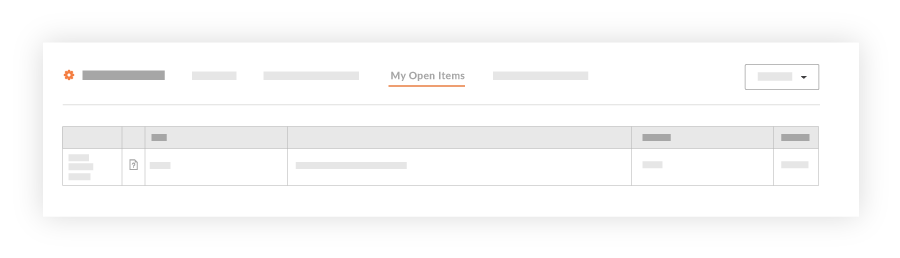
  2. Click the My Open Items tab.View Portfolio Open Items

  3. Click Export and select PDF or CSV to download your file.

See Also

Loading related articles...