Add financial markup to main contract variations
Background
In Procore, the term financial markup is used to refer to an increase that is applied to the cost of a product or service in order to arrive at its final cost. You can set two types of markup on variation line items.
Horizontal markup. A horizontal markup calculates the markup amount on an individual line item.
Vertical markup. A vertical markup calculates the markup amount as a subtotal on all of the line item on a variation.
In addition, you can associate your financial markup settings to cost codes, categories and sub jobs. This ensures that the financial markup on your project's variations is reflected accurately on your project's Budget. For companies using ERP integrations, it is important to understand how these markups interact with your synced contract items.
Things to Consider
Required User Permissions:
To add financial markup, 'admin' level permission on the project's main contract tool.
To view financial markup on the variation's Bill of Quantities (BOQ), 'Standard' level permission on both the project's variations and main contracts tools.
Additional Information:
If you do NOT select a cost code or cost type for the financial markup to map to, it will appear on the project's Budget as:* budget code = None
Steps
Navigate to the project's main contract tool.
Locate the main contract to work with. Then click its Number link.
Click Financial markup.
NoteThis tab is only available if it has been enabled in the appropriate tool's advanced settings tab.
Under Financial markup setting, you have these options: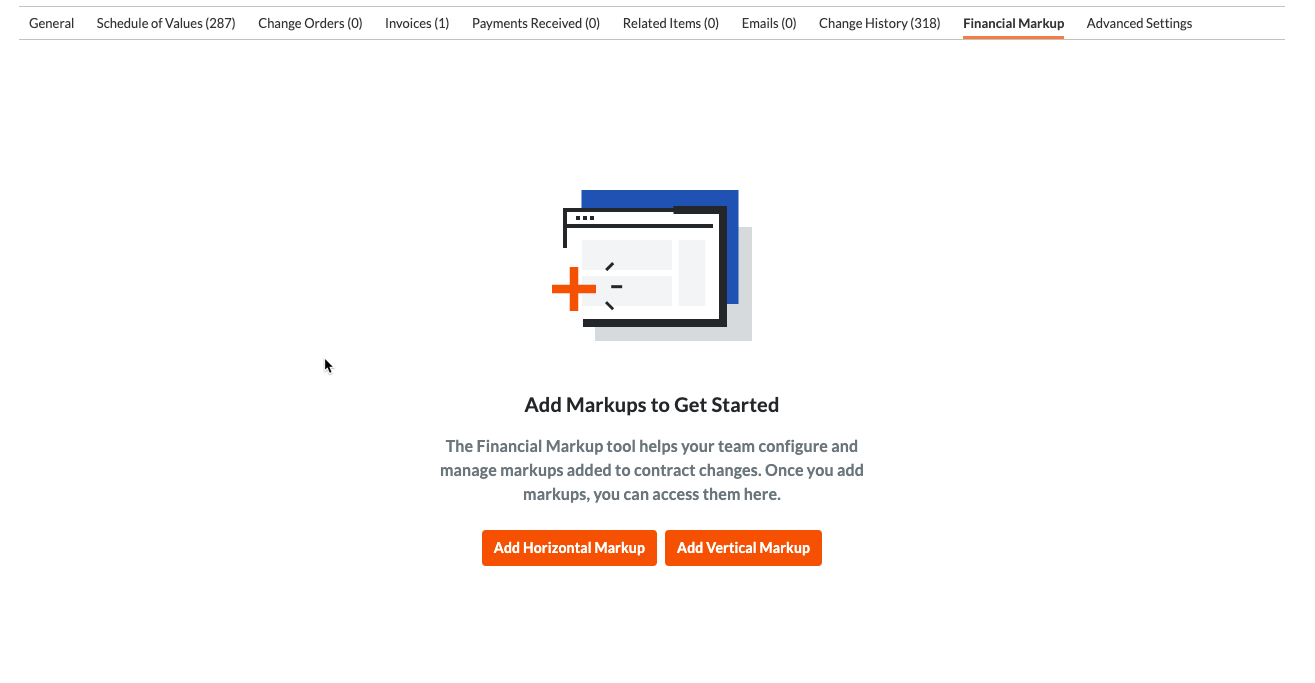
New horizontal markup. Click this button to display the markup in the same row as the line item.
New vertical markup. Click this button to display the markup below the line items.
NotesTo learn about the differences between markup types, see What is the difference between horizontal and vertical financial markup?
You can apply financial markup setting on a per-variation basis.
 ERP Integrations tool: