Import a main contract BOQ from a CSV file
Background
To save time from manually adding line item to a main contract's BOQ, you can download a CSV file from your project, add your line item to that file and then import it into Procore.
Things to Consider
Required User Permissions:
'Admin' level permission on the project's main contract tool.
Prerequisites
Before importing, it's important to know how the Enable always editable Bill of Quantities setting works:
When this setting is OFF (default). The commitment must be in draft status to import.
When this setting is ON. The commitment can be in any status to import. However, you cannot replace line item if they have been payment application.
To learn more about imports, see What are the requirements for importing BOQ line item from CSV?
Steps
Download a CSV template
Add line items to a CSV template
Import the completed CSV template to Procore
Download a CSV template
Navigate to the main contract tool.
In the table, click a Number link to open the contract.
Under the General tab, click Bill of quantities.
In the Bill of Quantities card, click Edit.
This places the BOQ into edit modeBelow the table, click Import and choose BOQ from CSV .
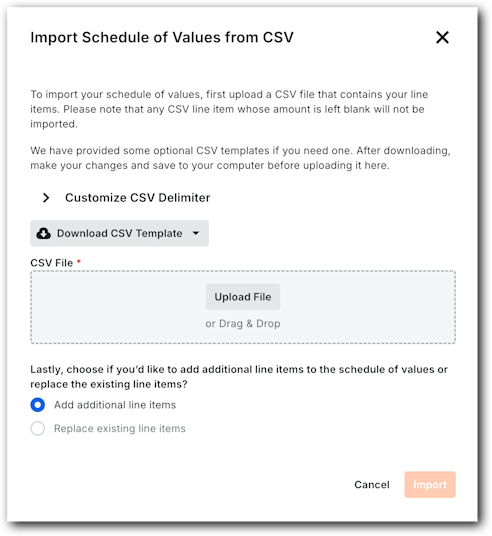
This opens the Import bill of quantities from CSV window.
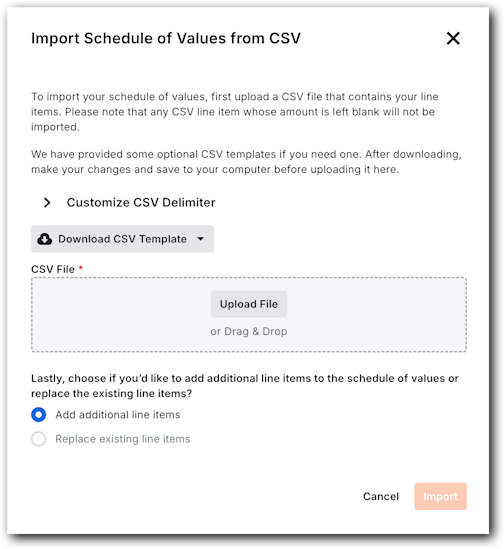
Expand Custom CSV delimiter.
Choose a delimiter for the template file: Comma or Semicolon.
The system's default option is Comma.Click Download CSV template and choose: Blank template or Template with existing line items.
The downloads the selected template to your web browser's configured location.
Add line items to a CSV template
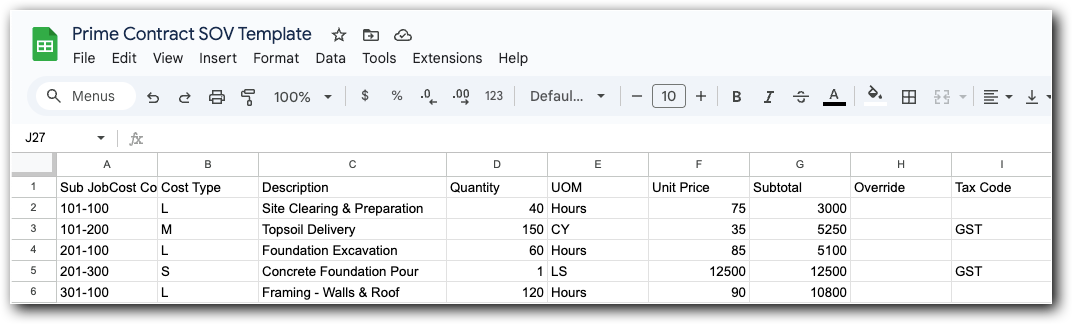
Open the downloaded template in a spreadsheet editor.
Enter the line item data using the appropriate accounting method for the main contract. See How do I set the accounting method for a contract or funding?
How to enter data for amount-based accounting: Show/Hide
To import a main contract using the amount-based accounting method, enter data as follows:
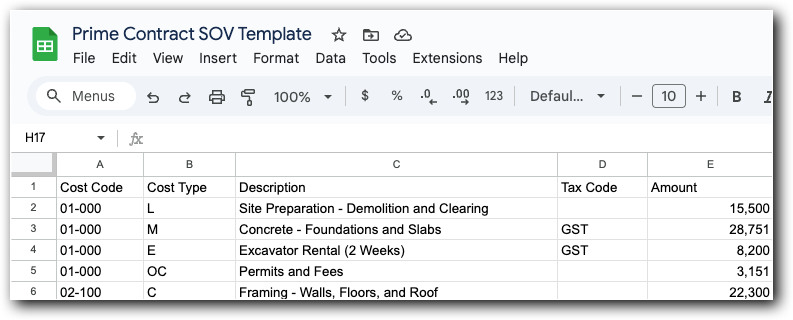
Sub Job. Enter a sub-job code for the line item. This only appears when sub-jobs are enabled. See Enable Sub Jobs for WBS and Which integrated ERP systems support the sub job concept?
Cost Code. Enter a cost code for the line item. To learn more, see What are Procore's default cost codes?
Cost Type. Enter a cost type for the line item. See What are Procore's default cost types?
Important Information about Cost TypesIf you leave this cell blank, Procore classifies it as Other.
This list might be customised for your company. See Add Company Cost Types or ask your Company Admin for a list of valid cost types.
Data entry is required if your integrated ERP system syncs data with Procore. See Which integrated ERP systems support the 'Cost Type' concept?
Description. Enter a statement to describe the line item.
Tax code. Enter the tax code for the line item.
Important Information About Tax CodesThis list might be customised for your company. See Configure Tax Code Settings or ask your Company Admin for a list of valid tax codes.
Amount. Enter a numeric amount without commas or the pound sign (e.g., 15000); enter '0.00' if there is no monetary amount, as blank cells are not accepted.