Manage project controls in bulk

 General availability in select markets (United States)

Flag Us Procore Pay is available in the United States. It is designed for main contractors and owner-builders who act as their own main contractors on a job. Procore Pay extends the payment application management functionality in the Procore web application to handle the payment process between main and specialty contractors.

Background

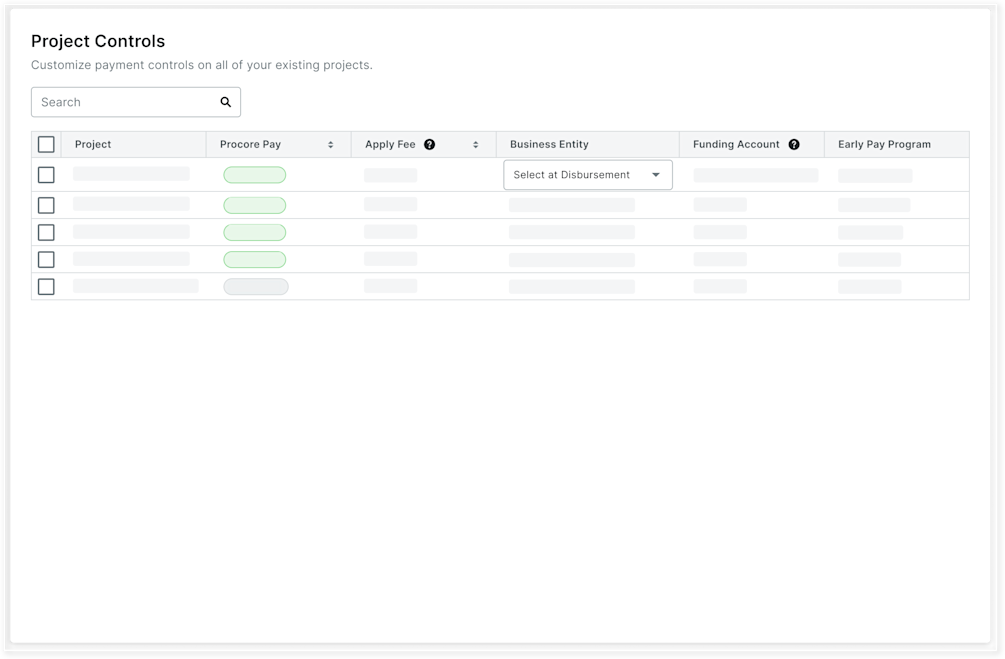
On the Project controls page, a payment admin can bulk enable or disable the Procore Pay features on your company's projects. This tool also lets you choose the bank account to use.

Things to Consider

Prerequisites

Steps

  1. Navigate to the Company level Payment tool.

  2. Click the payments settings Icon Settings Gear Android icon.
    This opens the payment setting page.

  3. Click Project Controls.
    This opens the Projects Controls page.

    Project Controls With Business Entity

  4. Optional. Start typing a project name in the Search box to narrow down the list of projects.

  5. In the table, select one or multiple projects:

    • To select one or multiple projects, mark the tickbox(es) that correspond to the desired projects.
      OR

    • To select all projects, mark the tickbox in the heading of the Project column.

  6. Choose from these options to make a change in bulk:

    • Edit pay. Choose the Enabled or Disabled setting from the drop-down list.

    • Beta Edit early pay programme. Choose one of your company's early pay programmes. To learn more, see About Early Pay programmes.

     Note

    Can I change the Apply Fee setting in bulk? No. Fee settings must be configured individually on each project. See Configure Procore Pay fee collection for a Procore project.

Changes are saved automatically. A GREEN success banner confirms the action.

See Also

Loading related articles...