View payment requirements as the payment application contact for a payee

 General availability in select markets (United States)

Flag Us Procore Pay is available in the United States. It is designed for main contractors and owner-builders who act as their own main contractors on a job. Procore Pay extends the payment application management functionality in the Procore web application to handle the payment process between main and specialty contractors.
Background

If you are a subcontractor who entered into a commitment with a using Procore Pay, an for the payor can designate an employee of the payee's company as the payment application contact on their commitment. If you are the payment application contact, you can use the steps below to view the status of a payment application's payment requirements.

Things to Consider

  • Required User Permissions

  • Additional Information:

    • What you can see in the payment requirements tab depends on your role.

    • Incomplete requirements do NOT prevent a from paying payment applications. If you have questions about the requirements, contact the payer for assistance.

    • Any manual payment holds applied to a payment application can be viewed on a payment application in the payment requirements, if the payor has shared it with you.

Prerequisites

Steps

View payment requirements

  1. Navigate to the project's Commitments tool.

  2. Under the Contracts tab, locate your commitment contract. Then, click the number link to open it.

  3. In the commitment contact, click the payment applications tab.

  4. In the payment application tab, locate the payment application to open.

  5. Click the payment application # link to open it.

  6. In the payment application, click the Payment requirements tab.
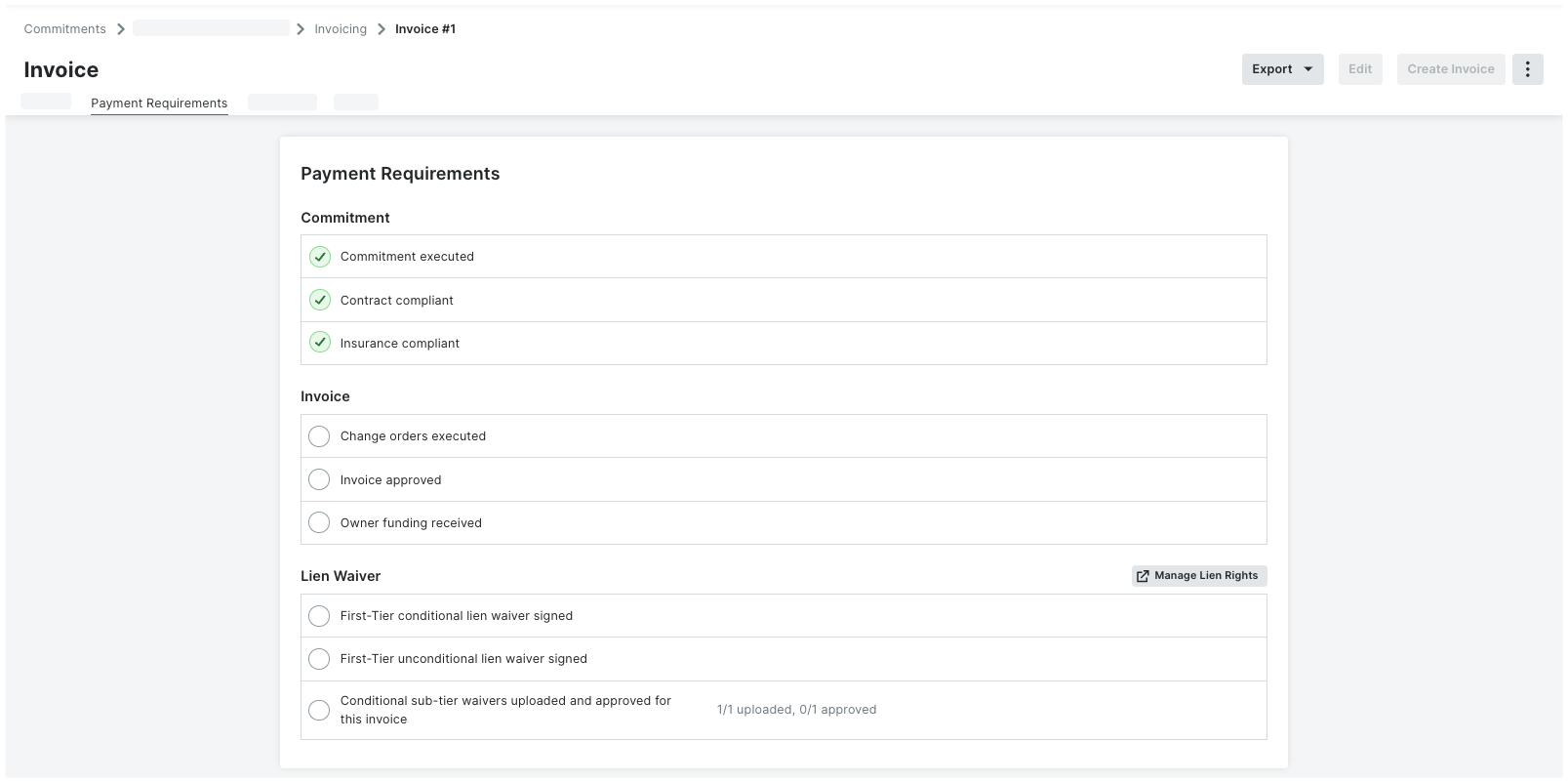
    The Payment requirements tab shows whether the configured payment requirements for payment has been met. Payment requirements are configured by the payor's payment application administrator. Payment application contacts can only view payment requirements. To learn more, see Configure payment requirements as a payor.

     Tip
    • A GREEN tick indicates the payment requirement has been satisfied.

    • No tick indicates the payment requirement has not yet been satisfied.


    Invoice Contact Payment Requirements

View holds

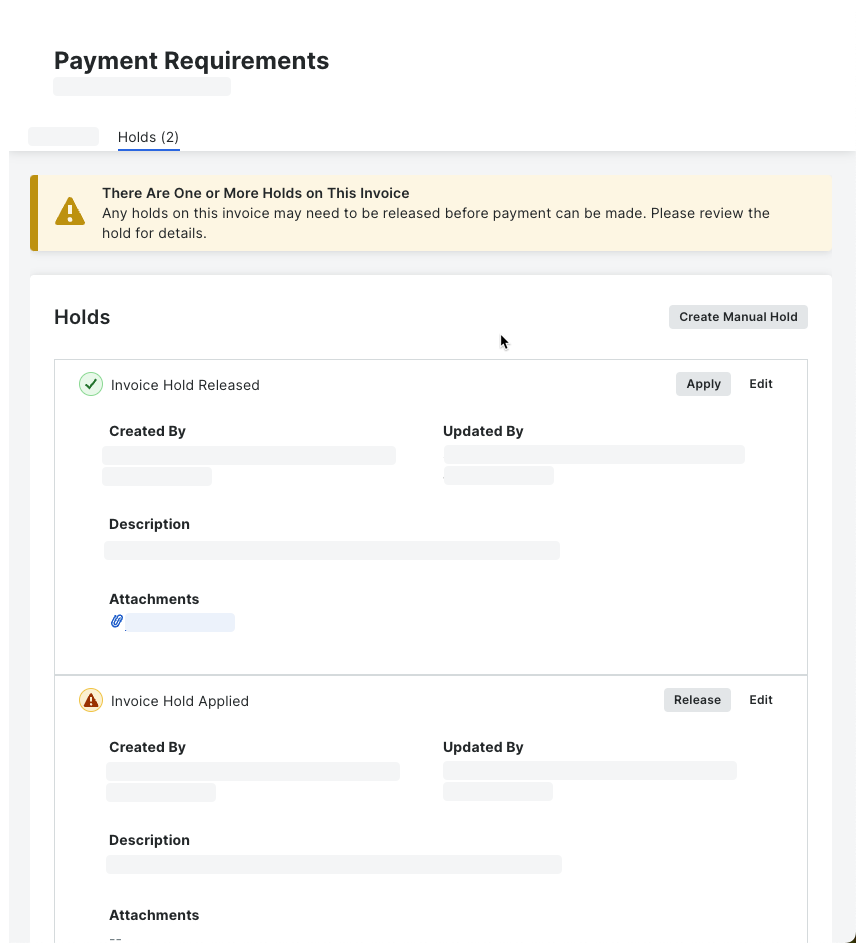
If the payor chooses to share any holds with the payment application contact, contacts can view them in the Holds tab. If you have a question about a specific hold, contact the .

 Note

The Holds tab only displays holds that have been shared. To view a hold that has been shared, you must be granted 'Standard' or 'Read Only' permissions on the project's Commitments tool.

The Holds tab shows the following information.

Payment Requirements Holds

The table below describes the features in the Holds tab. To learn more, see About holds in Procore Pay.

Label

Element

Description

Status

Icon

  • A YELLOW caution icon indicates a manual hold has been applied to the payment application.

  • A GREEN tick indicates a manual hold has been released.

  • No mark indicates a manual hold has not been placed on the payment application.

Create hold

Button

Click this button to create a new hold.

Release

Button

Click this button to release an existing hold.

Edit

Button

Click this button to modify an existing hold.

Created By

Field

Shows the name of the user who created the hold.

Last modified by

Field

Shows the name of the user who last updated the hold.

Description

Text

Shows any information entered by the person who created or edited the hold.

Attachments

File

Shows any attachments added to the hold. Click the file link to download a copy of the file(s).

See Also

Loading related articles...