Request a programme change
Things to Consider
Required User Permissions:
'Standard' or 'Admin' on the project's Programme tool.
Additional Information:
The programme change feature is only designed to capture proposed changes to the programme. Requests and approved changes will not take effect on the actual Project Programme. All changes must be applied to the project's programme's source file using your third-party programme software (for example, MS Project or Primavera) and then updated in Procore so that changes appear under the project's Programme tool, see Update a Project Programme.
Steps
Navigate to the project's Programme tool.
Locate the task you want to request a programme change for. See Search and filter for scheduled tasks.
Click the programme task from the list, calendar, Gantt or lookahead view.
On the task item details page, fill in the information under Request a programme change for the task.
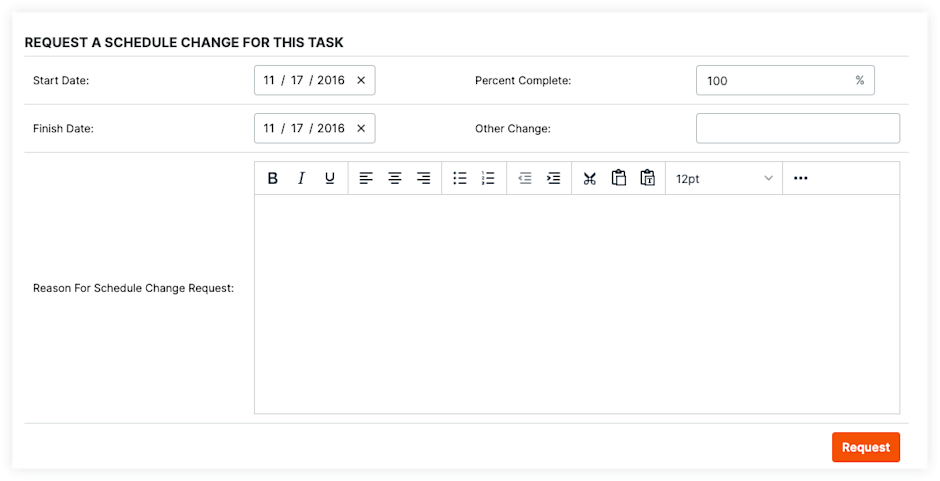
Start date: If you would like to request a change to the start date of the task, enter a new start date.
Finish date: If you would like to request a change to the finish date of the task, enter a new finish date.
Percent complete: If you would like to request a change to the percent complete, click Change, enter in the new percent and click OK.
Other change: If you would like to request a change to something else besides the start/finish date and the percent complete, enter in the details of the change you wish to make.
Reason for programme change request: Enter in the reason for the change you are requesting so the Programme tool admin user can better understand the change.
Note: Any users who are configured to receive update emails when change requests are made will be notified of the programme change request. See Configure programme notification emails sent to a user.
Click Request.
A message will appear to confirm that the request has been submitted.
Note: When your change is approved, it will appear as 'Approved in the programme change request history' section. However, changes to the actual programme must be performed in your programme software.
Next Steps
The Programme tool admin user will need to review programme change request. See Review programme change request.
See Also
Loading related articles...